Prompts are the instructions to AI to get the desired response. These can be tweaked as per the requirement.
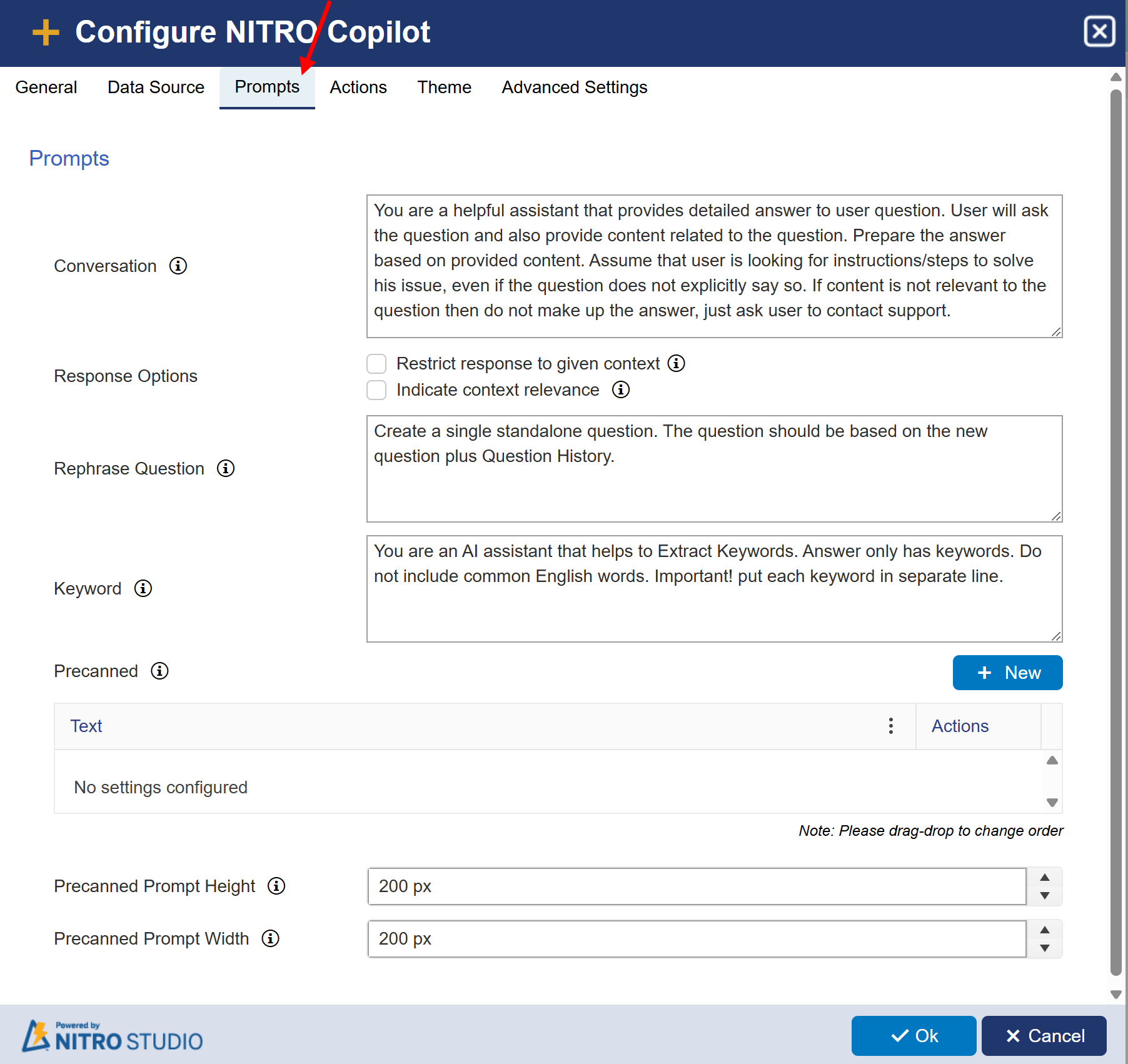
Sample Prompt Configuration:
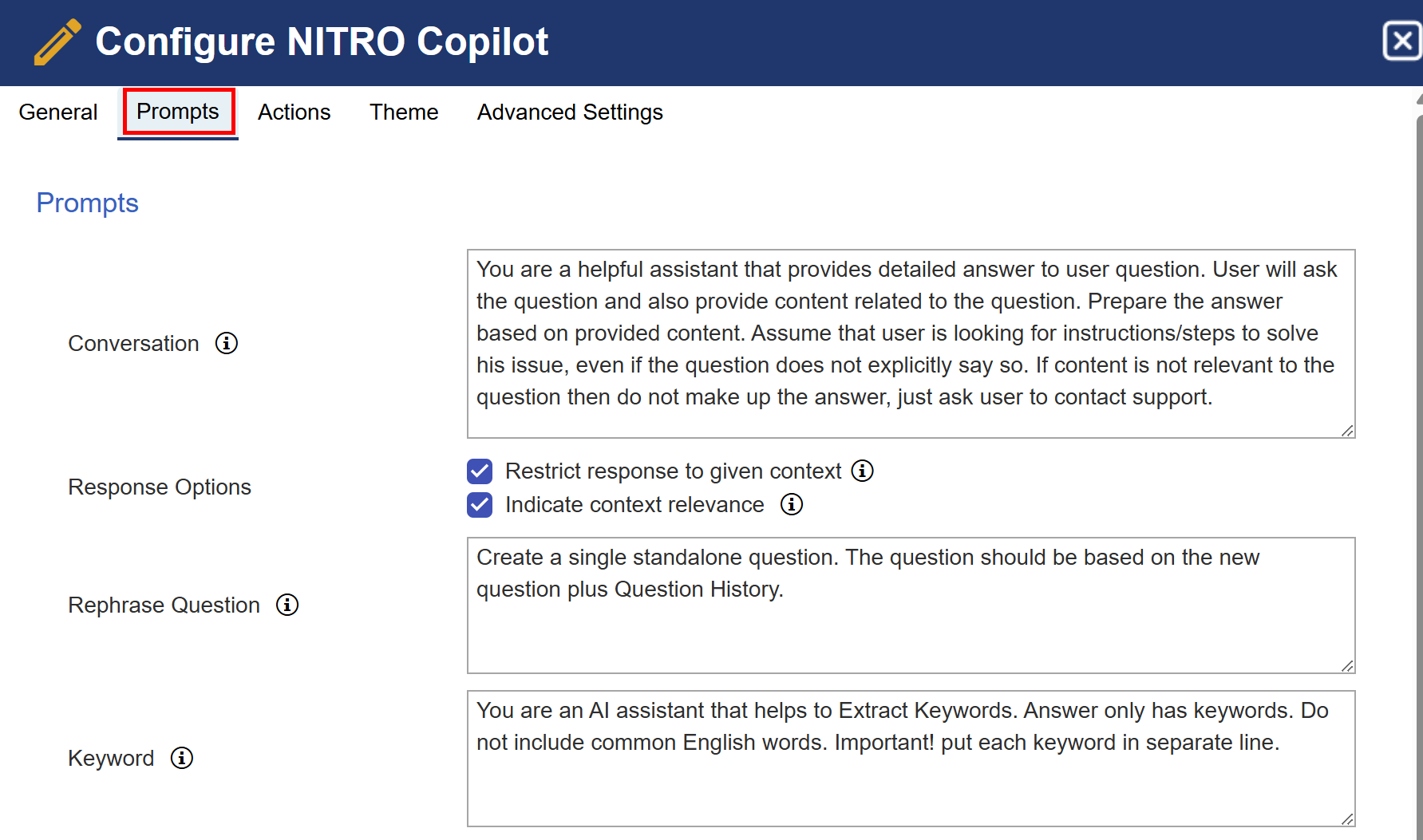
Conversation: Input to LLM (Large Language Model) AI to generate the answer based on user query and search content.
•In this setting, Input to LLM (Large Language Model) AI means that the user's query and any relevant search content are provided as input to the AI model.
•The AI then generates a response based on this input, leveraging its language processing abilities to provide a coherent and relevant answer.
Response Options:
a)Restrict Response to Given Context: This is an optional setting that can be enabled to control how the AI generates its responses.
•When Checked:
oThe AI is instructed to only use the provided context to formulate its response.
oIt is not allowed to provide general answers or make any assumptions outside of the given context.
oThis ensures the response remains accurate, relevant, and consistent with the information provided, avoiding general answers that may not be relevant to your organization.
If Restrict Response to Given Context option is enabled, the following text is added to the conversation prompt:
“Only use the provided context to answer the question. If the context is not there or not relevant to the question, then do not fabricate or make up the answer. Strictly ensure that the response is relevant to the context given and maintains coherence with the topic.”
If Restrict Response to Given Context option is disabled:
When the "Restrict Content" option is disabled in NITRO Copilot's conversation prompt settings, you have the flexibility to include additional information directly within the conversation prompt. This allows the AI to generate responses based on both the user's query and the provided context.
b)Indicate context relevance: When enabled, Copilot evaluates how relevant the context is to the user's question.
This setting is mainly used to hide irrelevant source/reference links in the final answer.
Restrict Response |
Indicate Relevance |
Outcome |
Enabled |
Enabled |
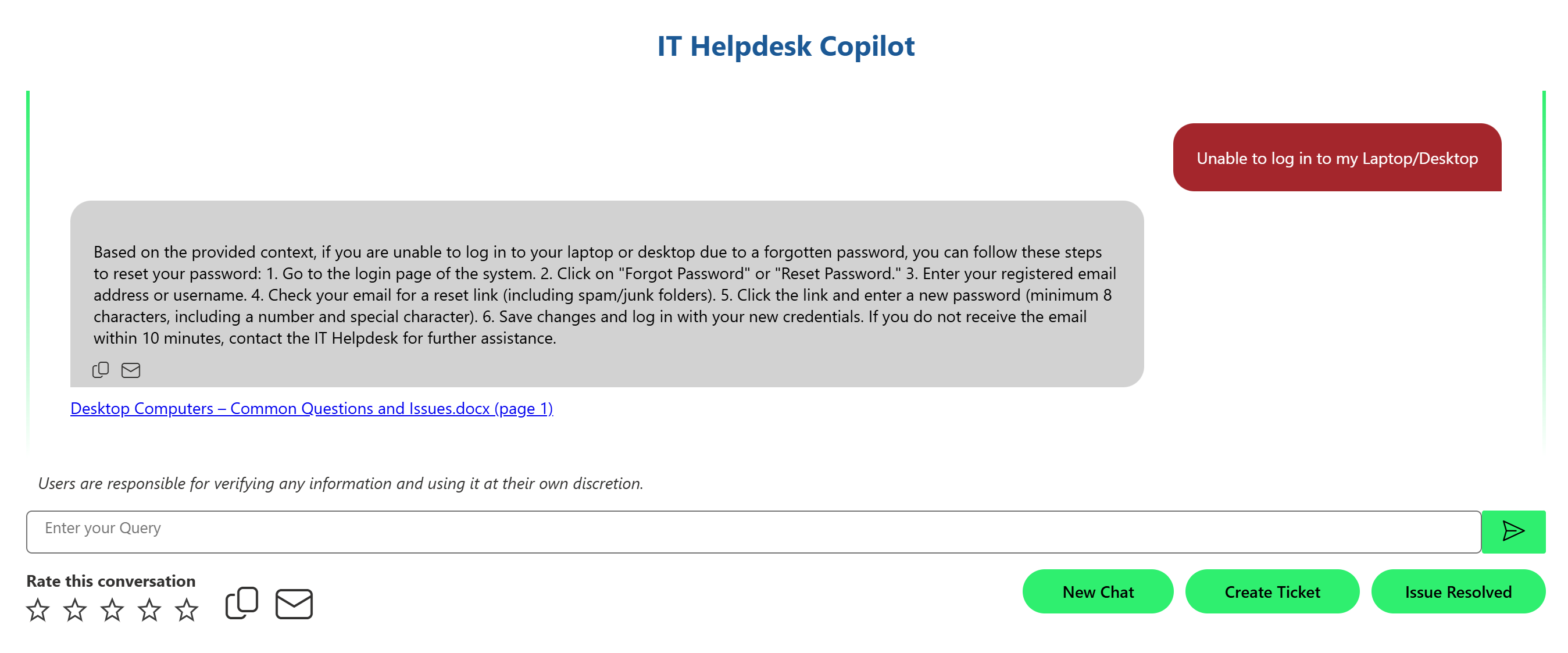
Copilot only uses provided content, and also tags the relevance of sources. Only relevant links are shown in responses. Best for reliable, context-specific responses. |
Enabled |
Disabled |
Copilot restricts to context but shows all links, even if some aren’t fully relevant. Responses won’t flag context relevance. |
Disabled |
Enabled |
Copilot may use general AI knowledge beyond the provided context, but will still indicate if the given context was useful or not. |
Disabled |
Disabled |
Copilot can freely use AI knowledge and provided content, no restriction or indication of source relevance. May lead to broader but less controlled responses. |
Sample Output without enabling Restrict Response to Given Context and Indicate context relevance:
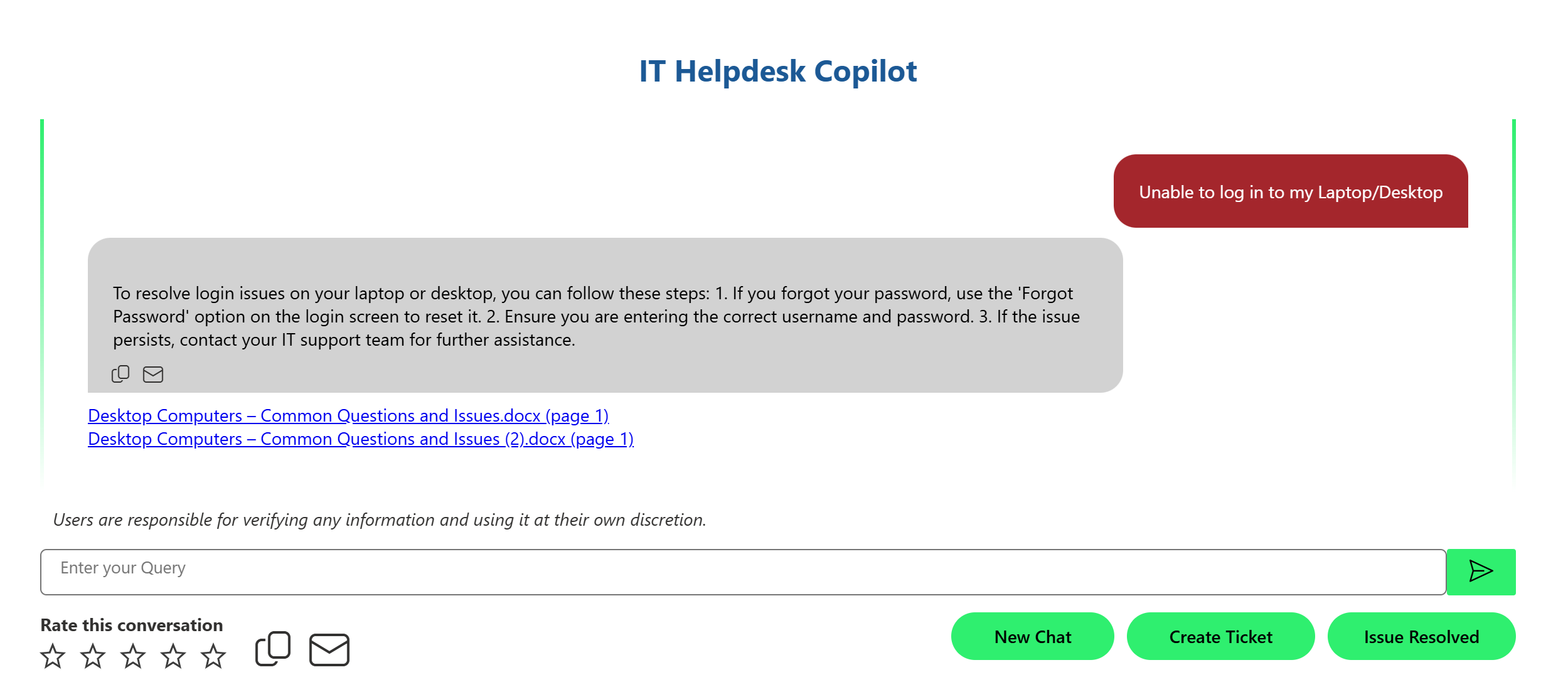
Sample Output with enabling Restrict Response to Given Context and without enabling Indicate context relevance:
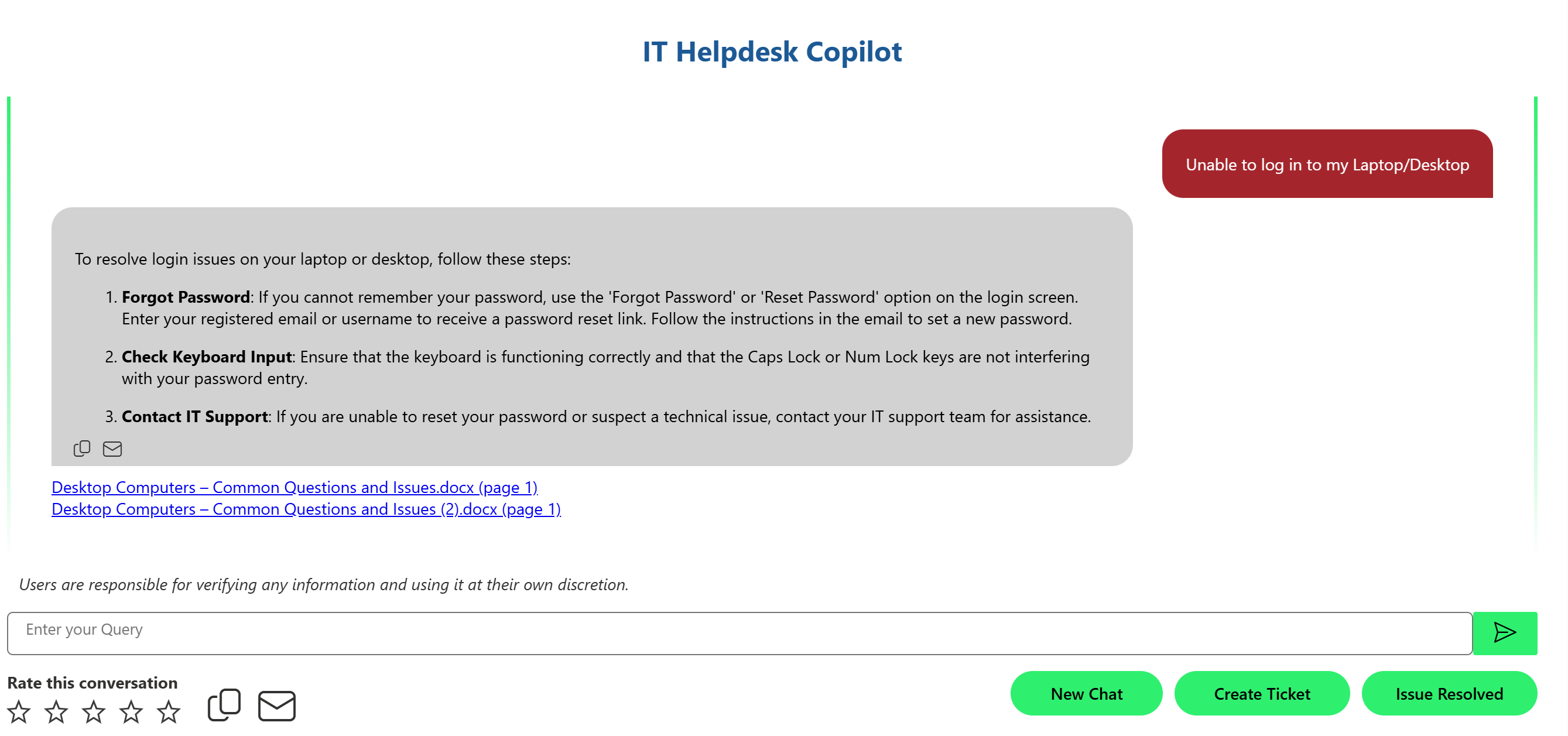
Sample Output without enabling Restrict Response to Given Context and with enabling Indicate context relevance:
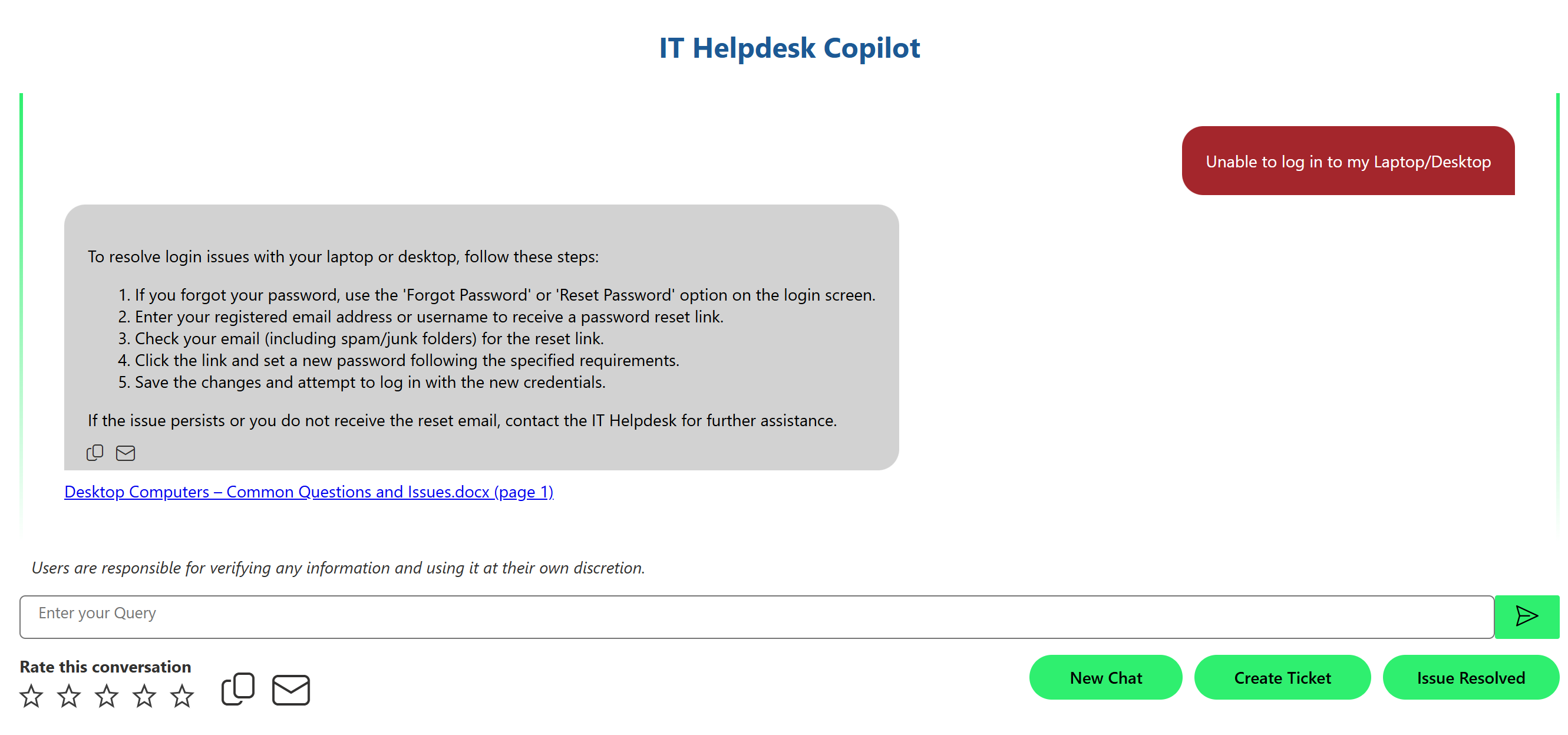
Sample Output with enabling Restrict Response to Given Context and Indicate context relevance:
Rephrase Question: Input to LLM (Large Language Model) AI to rephrase the question based on the latest user query text and the conversation history. This setting tells Copilot how to rewrite a user’s question in a clearer way, using both the current question and earlier conversation.
Keyword: Input to LLM (Large Language Model) AI to extract the keywords from user query text. This setting tells Copilot how to pick out important words from a piece of text.
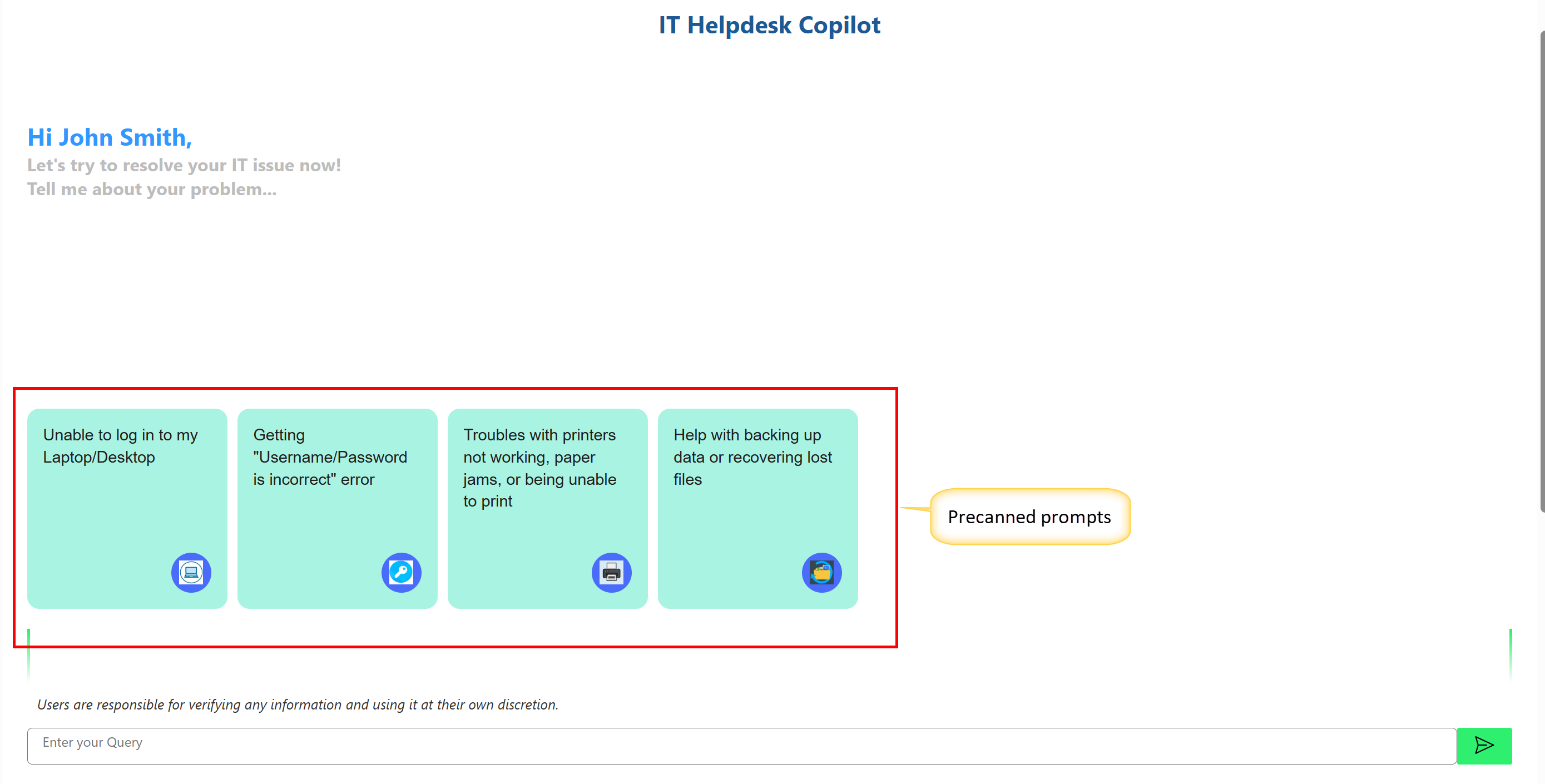
Precanned: Tiles for frequently used queries from the users. These are designed to quickly address common queries or actions within the Copilot application.
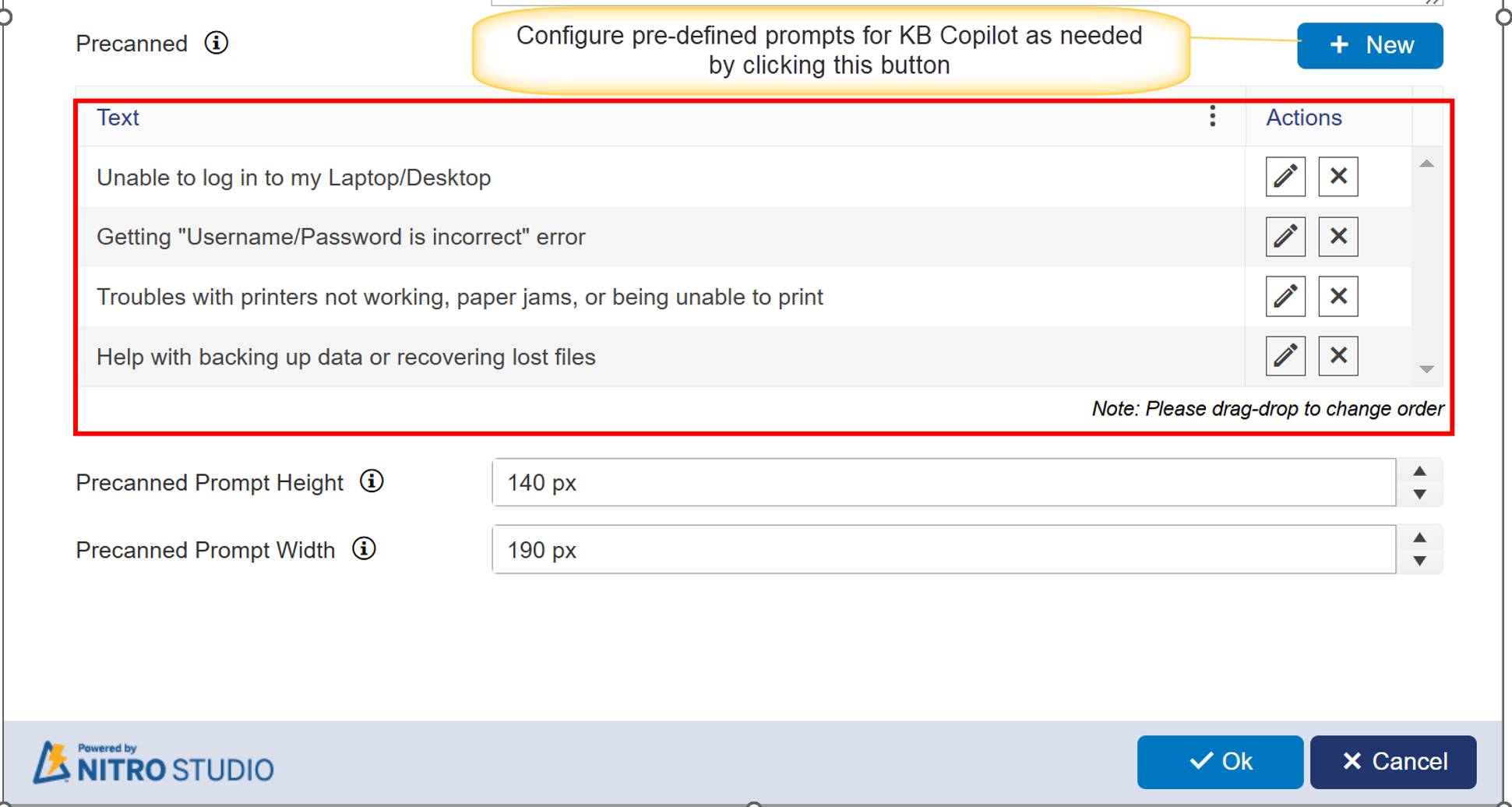
You can create a new Precanned prompt by clicking the ‘New’ button.
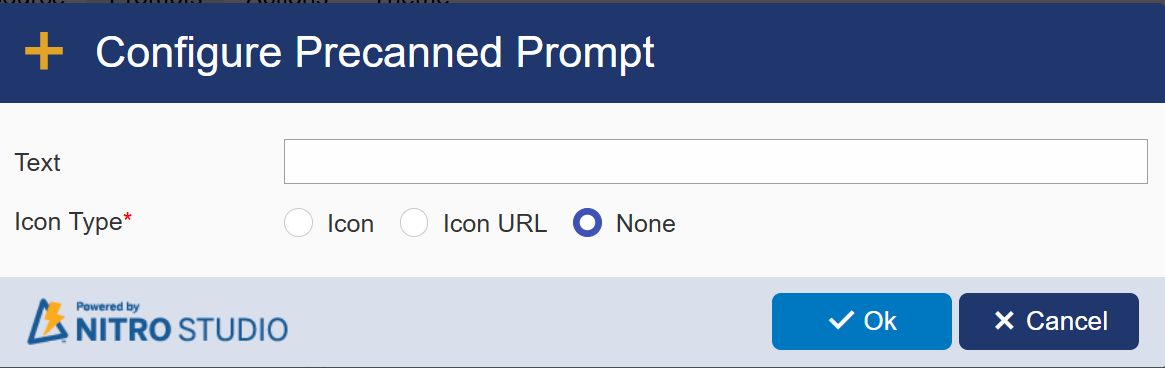
Sample configuration:
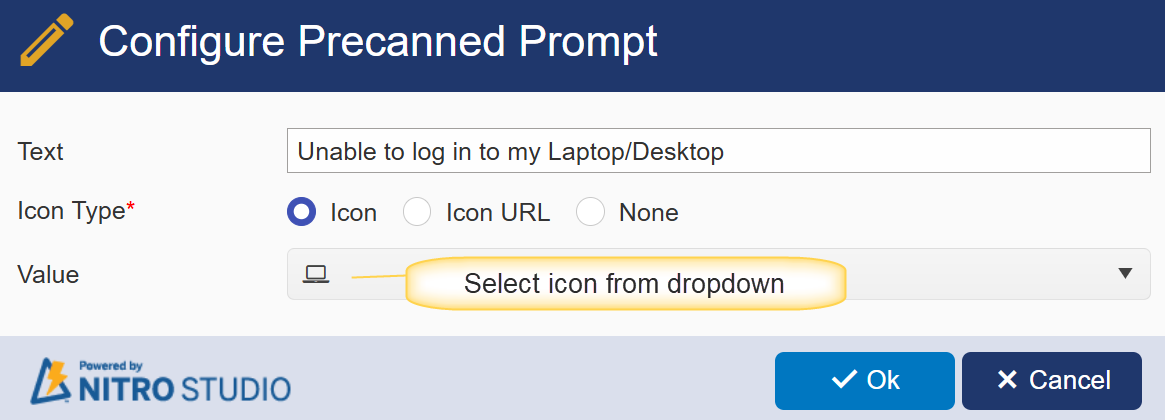
Or provide Icon URL as shown below
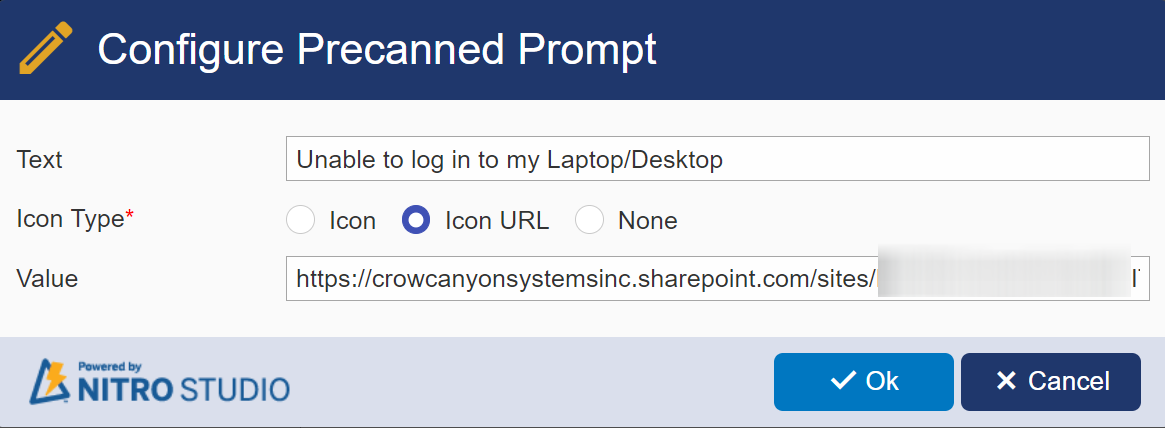
Upload the icon in any folder in Site Assets, then copy the link.
Sample URL used above: [[Site URL]] /SiteAssets/Icons/Laptop.png
Precanned Prompt Height: Specify the height (in pixels)of the tiles to display precanned requests in your copilot application.
Precanned Prompt Width: Specify the width (in pixels)of the tiles to display precanned requests in your copilot application.
Sample Output:
Configured Precanned prompts will be shown in the NITRO Copilot webpart as shown below