A data source in NITRO Copilot refers to the location where documents are stored and from which Copilot retrieves information.
Some possible options include:
•SharePoint Document Libraries
•SharePoint lists
Data source for Azure AI Search
Data source lists are not required for the Azure AI search as it will search content from the search index selected in the general settings. So, Data Source tab will be hidden in this case.

Data Source for SharePoint Search, and SharePoint and Embedding Search in AI Settings (General Section):
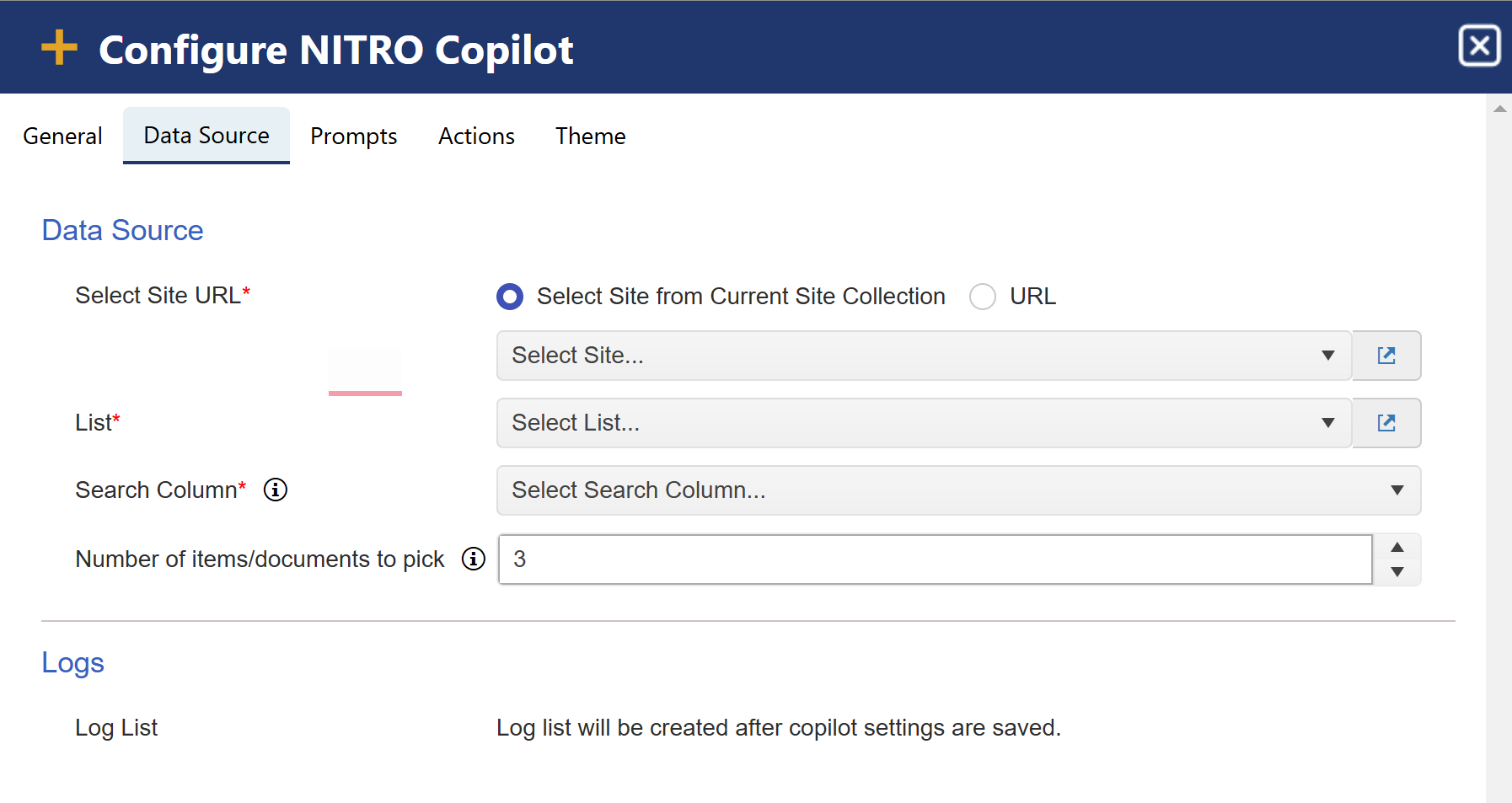
Select Site URL: Select the site URL for the data source list.
List: This dropdown will show all the available lists from the selected site. Search column can be selected from a
-Custom list or
-Document library list.
Search Column:
For a custom list, select the search column from the dropdown where Copilot will look for relevant information. For a document library, the DocContent column is automatically created. This column stores the extracted text from documents, making them searchable. Copilot searches within this column When it needs to find specific details, such as policy information. Example: If an employee asks, "What is the leave policy?", Copilot will scan the DocContent column to retrieve the most relevant information.
Number of items/documents to pick: Enter the maximum number of documents or items you wish to retrieve as search results in the SharePoint Search. This number determines how many search results will be displayed or processed based on your query.
Logs: Copilot stores its logs in the SharePoint list, and these can be analyzed by administrator or Crow Canyon support whenever required. It keeps track of system activities, user actions, and errors. It helps in monitoring performance, fixing issues, and improving Copilot responses.
Detailed explanation of lists selected in Data Source
Custom List: To search within a specific list, select the desired list from the available options. If you choose a custom list, the 'Embeddings Column' will become visible.
Example settings for KB Copilot:
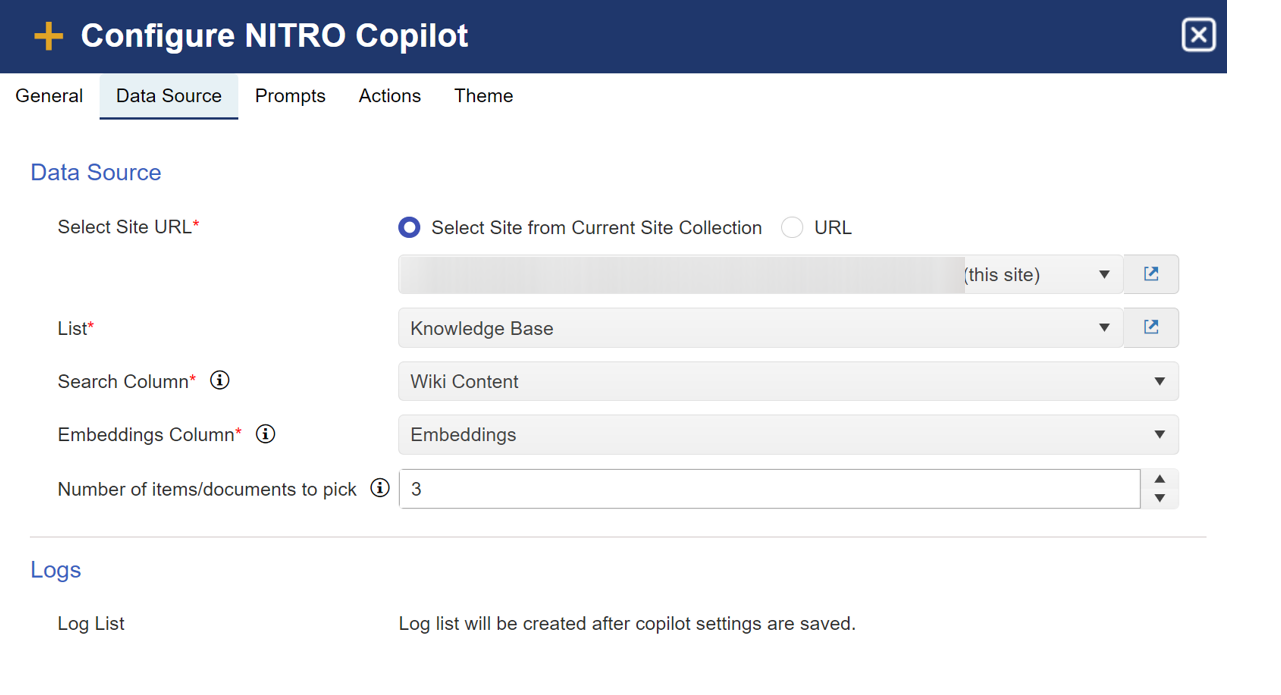
Embeddings Column: This column will store the embedding value of the search column content. This is used to better match the content with the user query based on the semantic meaning of the user query.
Connection Between Copilot and Embedding Action in Workflow:
NITRO Copilot utilizes embeddings to understand and process user queries effectively.
The 'Calculate Embedding' action in NITRO Workflows generates these embeddings for your list items. When a new item is added or an existing item is updated, this action computes the embedding for the specified content and stores it in the 'Embeddings Column'. Copilot then references these embeddings to deliver contextually relevant responses to user queries.
For detailed guidance on configuring the 'Calculate Embedding' action, refer to
Add link for Embedding action in NITRO workflows
Document Library:
If a customer wants to use Copilot to find information within their documents, they first need to store the documents in a SharePoint Document Library. However, for Copilot to understand and retrieve content effectively, the text from these documents must be extracted and indexed. This is where the Document Intelligence action in Nitro Workflows comes in.
After running the Document Intelligence action, the extracted content becomes available in SharePoint, making it accessible to Copilot.
If the content is stored in a SharePoint List, customers should select that list as the data source in Copilot.
If the content is stored in the Document Library, Copilot will automatically use the "DocContent"(automatically created) column, where the extracted text is indexed for search.
Example Settings:
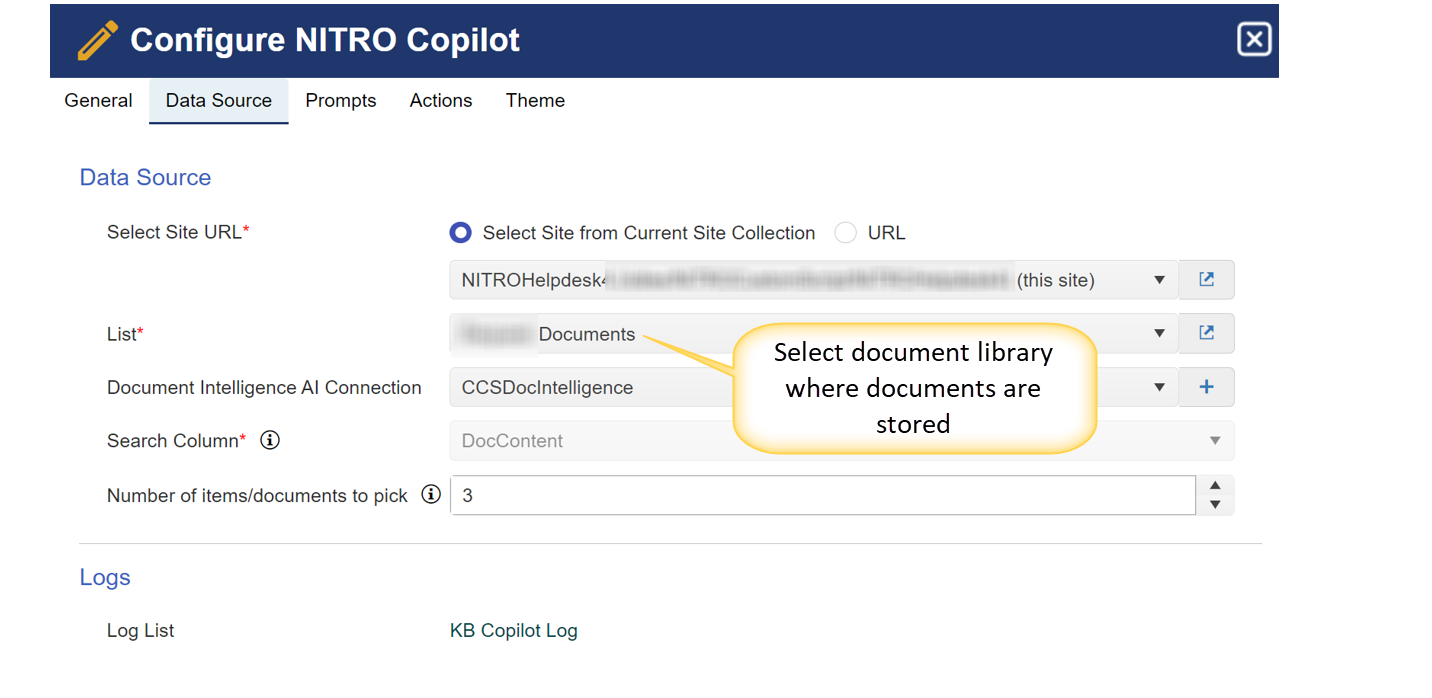
Document Intelligence AI Connection:
The Document Intelligence AI Connection (set as Azure Doc Intelligence in the example) enables Copilot to analyze and extract information from documents. If this is set up:
oCopilot can automatically read, understand, and extract key details from documents.
oWithout the connection, Copilot can only retrieve metadata like file names, not document content. For example, if asked about the HR leave policy, Copilot can return the file name but not the text. To enable content-based searches, the Document Intelligence AI connection is needed; otherwise, Copilot can only list documents.
This dropdown will show the existing Document Intelligence connections configured in the NITRO Site Settings. Also, we can create a new connection using the plus (+) icon.
Note: Users can create a workflow in Nitro Workflows that includes the Document Intelligence action to process and manage documents efficiently. This action automatically stores the documents in a designated target location, making them easily accessible for future use. Once the documents are stored, users can select this target location as a data source in Copilot. This setup ensures that all processed documents are indexed and available for search, improving Copilot’s ability to retrieve relevant information when needed.