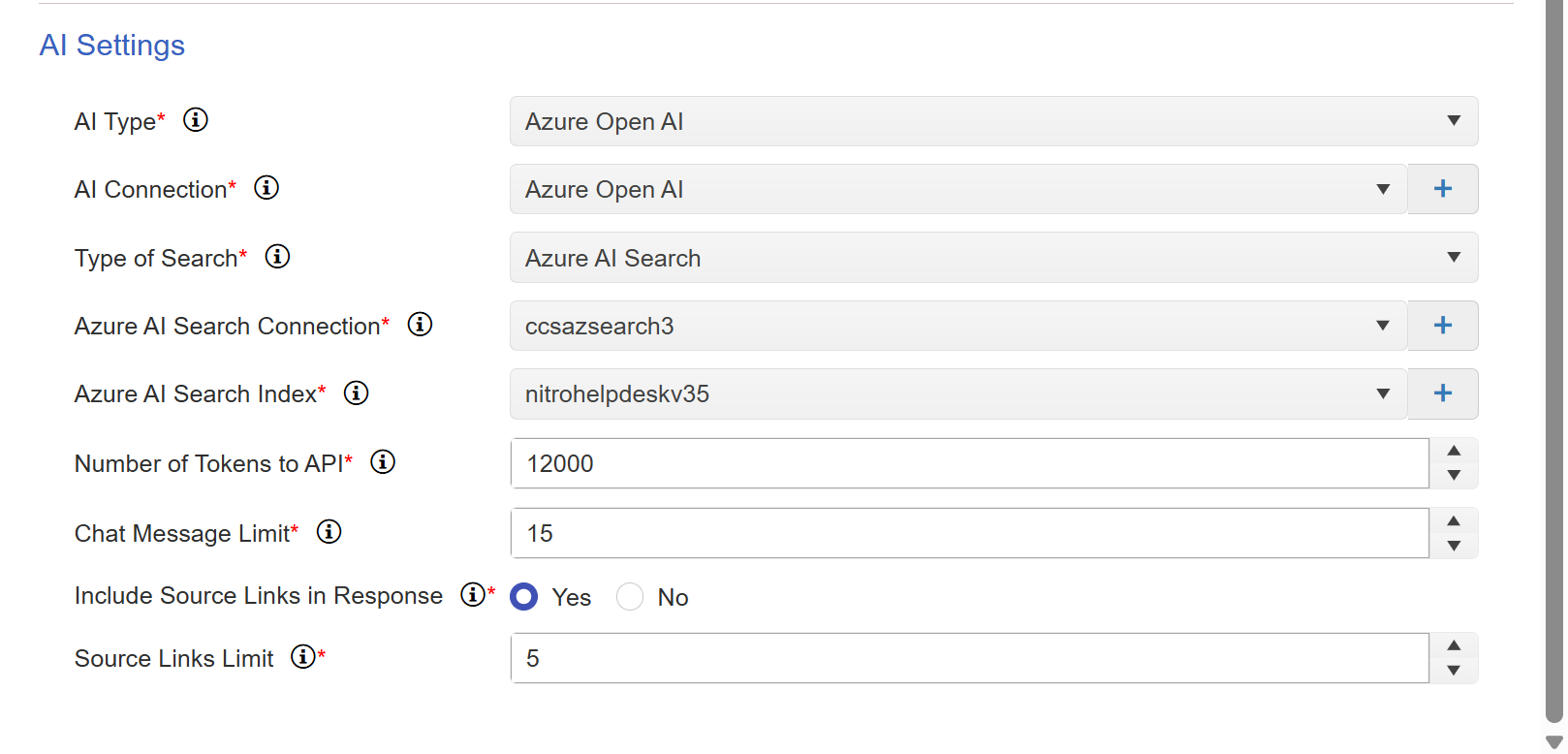
AI Type: Select the AI type as per the requirement for text generation and language processing. Below are the supported AI Types.
•Open AI
•Azure Open AI
AI Connection: Select an AI connection Configured in NITRO Site Settings. If no connection is configured yet, please click the ‘+’ button beside the dropdown to create it now.
Type of Search: Below are the supported search types. Select the type of search you wish to perform.
•SharePoint Search: Access and retrieve information stored within SharePoint repositories. Benefit from SharePoint’s robust document management and collaboration features.
•SharePoint and Embedding Search: Search the content using SharePoint search and the results are ranked using embeddings to capture semantic meaning and context.
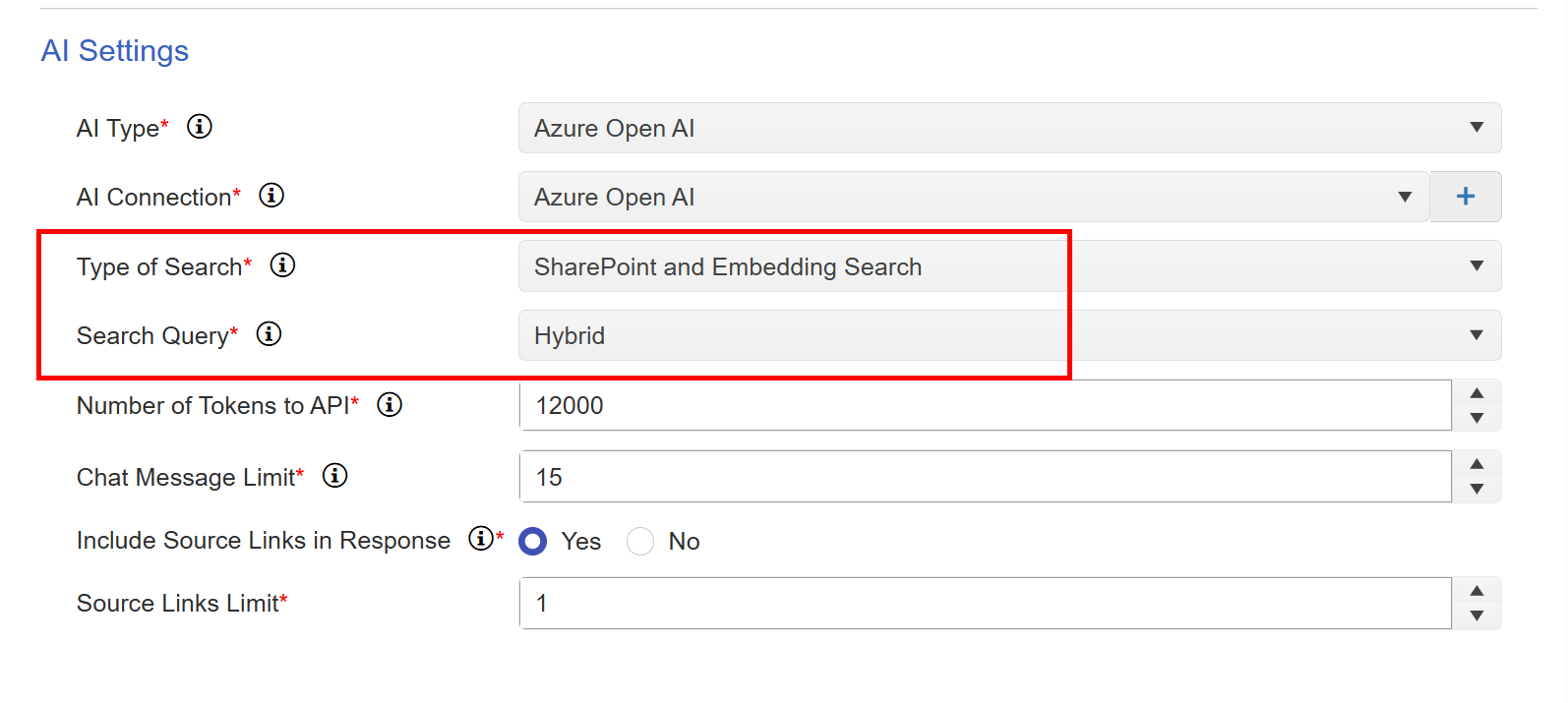
Search Query:
Search query will be shown only if the “Type of Search” is “SharePoint Search” or “SharePoint and Embedding Search”
It provides three options for search query input.
•User Input
•Key Phrases & Synonyms
•Hybrid
User Input: Keywords and phrases entered by the user in Copilot will directly be used to search for relevant information.
Key phrases & Synonyms: Instead of using the user-entered text directly, Copilot will send it to the AI service to extract keywords and synonyms. These keywords and synonyms will be used for the actual search.
Hybrid: Copilot will first search with user entered text. If no results are found, then it will use key phrases and synonyms
•Azure AI Search: It utilizes powerful AI-driven search capabilities provided by Azure with features like semantic search.
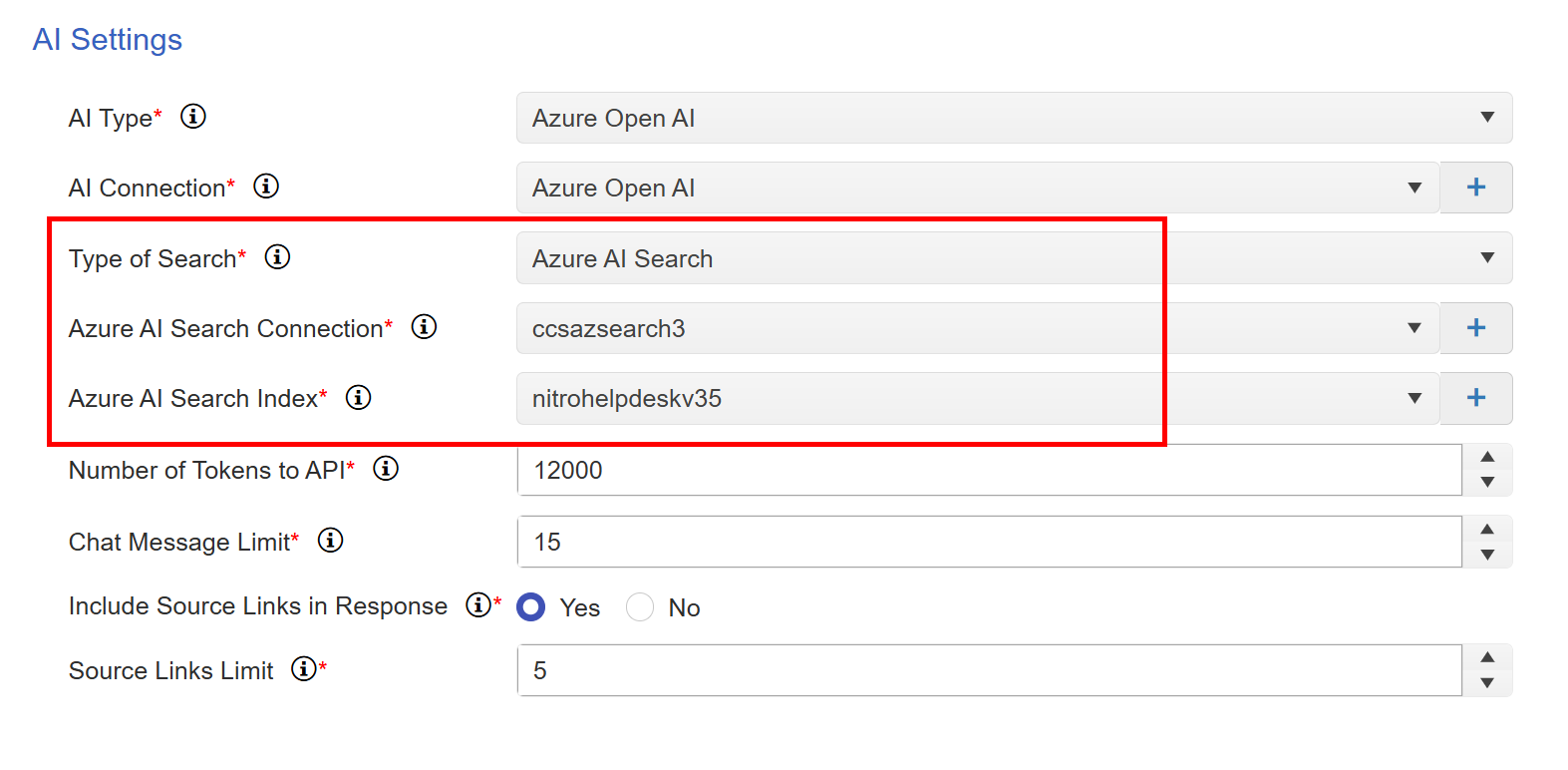
Azure AI Search Connection:
This connection will show only when we select “Type of Search” as “Azure AI Search”. Select the Azure AI Search connection to establish a connection with Azure AI Search. This connection allows the Copilot search application to interact with Azure AI Search Services, enabling powerful search capabilities. This dropdown will show the existing Azure AI search connections configured in the NITRO Site Settings.
Also, we can create a new connection using the plus (+) icon.
Azure AI Search Index:
Select the Azure AI Search index you wish to query within your Copilot search application. In Azure AI Search, indexes are used to store the extracted data from the documents and make them available in the search.
The index represents the structured data repository where Azure AI Search stores and retrieves searchable content.
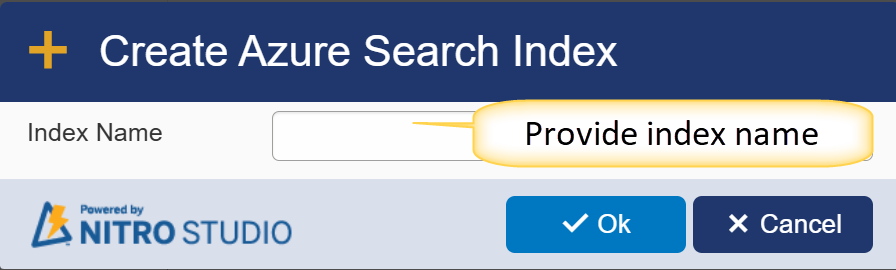
This dropdown will show the existing search indexes in the Azure AI Search. We can also create a new index using the plus (+) icon.
Number of Tokens to API:
Tokens can be thought of as words or pieces of words. 75 words are roughly equivalent to 100 tokens. Passing more tokens to AI APIs will give better results but will incur higher cost.
Specify the number of tokens to the API as per the selected AI connection and the completion model. Different models have different limits for allowed number of tokens.
Chat Message Limit:
Specify the number of messages the user is allowed to send in one conversation with the copilot. Users can start a new chat once this limit is reached.
Absolutely! Here's a clear explanation of these two NITRO Copilot settings in the Helpdesk application, specifically in the context of how they enhance AI responses:
Include Source Links in Response
Setting: Yes / No
Determines whether the AI-generated response should include hyperlinks to the original source documents or articles used to generate the answer.
•Yes: When enabled, Copilot will append clickable links at the end of its response pointing to the relevant Knowledge Base articles, ticket history, or documents that it used as references.
•No: Source links will not be shown in the AI responses, even if the data was fetched from internal documents.
Source Links Limit
Defines the maximum number of source links that can be included in a single AI response.
•For example, if you set this value to 2, Copilot will only show up to two of the most relevant links in its response — even if more documents contributed to the answer.