The Home tab of the Employee Portal provides a centralized dashboard where users can easily access IT support, submit tickets, view their current requests, and manage approvals. Below is a detailed breakdown of each section available on this screen:
1.Self Service IT Support Copilot
2.Quick Tickets
3.Useful Links
4.My Tickets
5.My Approvals
1. Self Service IT Support Copilot
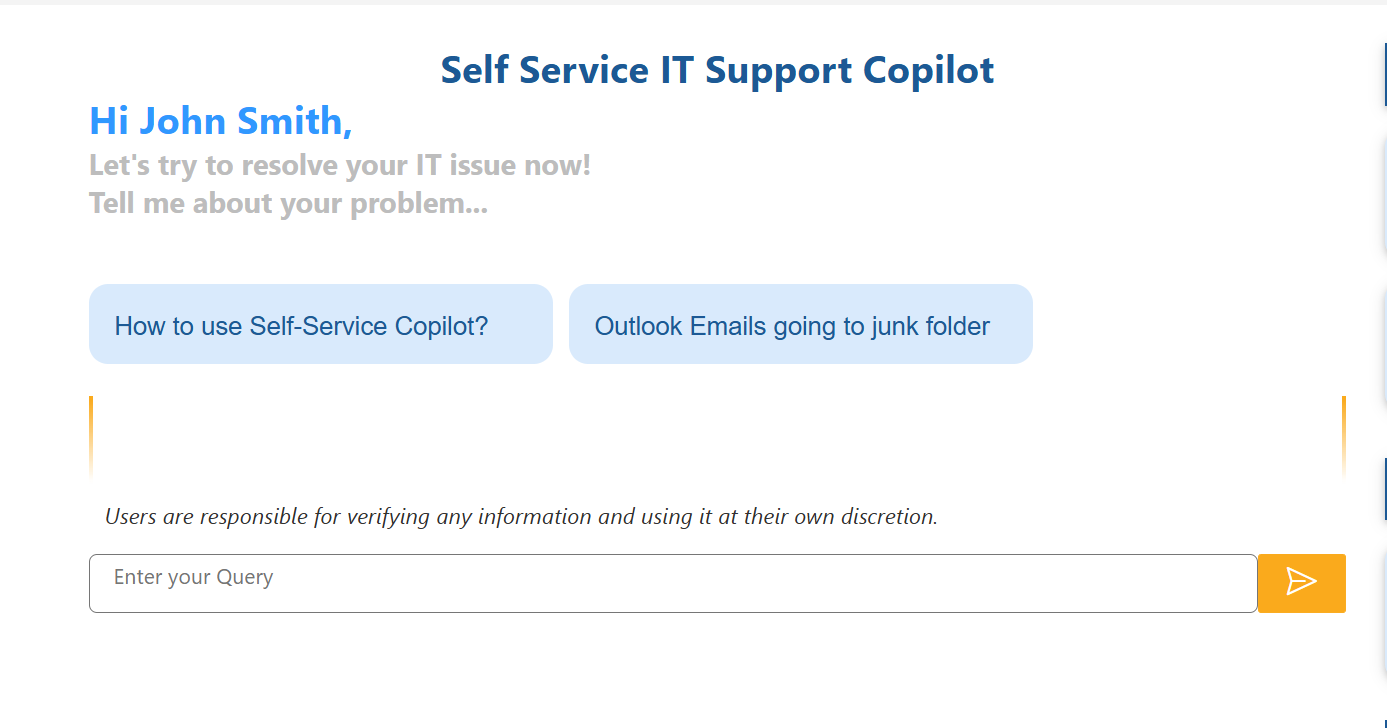
This section offers a conversational AI assistant designed to help users troubleshoot and resolve common IT issues quickly and independently.
Key Features:
•Query Input Field: Users can type in their questions (e.g., “Outlook not sending emails”) and receive instant help.
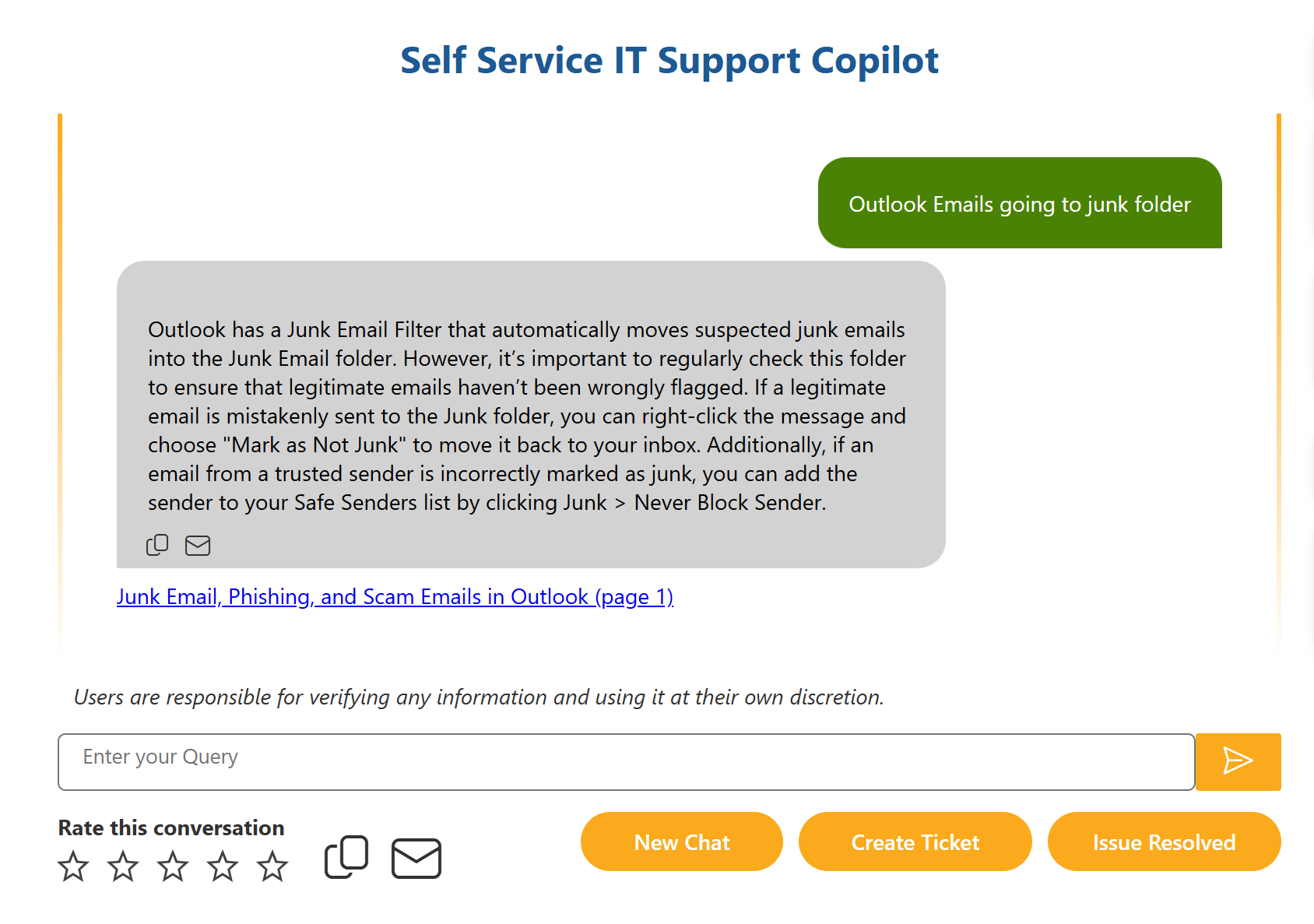
•Automated Responses: The Copilot provides solutions, links to relevant resources, or next steps based on your query.
•Create Ticket Options: If the AI response doesn’t resolve your issue, you can easily:
oStart a new chat
oCreate a ticket
oMark the issue as resolved
•Rating System: Users can rate the helpfulness of the response using a star-based system and provide feedback.
•Disclaimer: A note reminds users they are responsible for verifying and using information at their discretion.
This tool reduces dependency on live support for basic queries and encourages faster issue resolution.
2. Quick Tickets
The Quick Tickets section provides one-click access to create tickets for frequently requested IT services.
Available Options Include:
•HR Dept Only – For HR-related internal support.
•Spam & Phishing – To report suspicious emails or potential phishing attacks.
•Hardware Request – For ordering or repairing physical equipment (e.g., laptops, monitors).
•Software Request – To request access to applications or software installation.
Purpose:
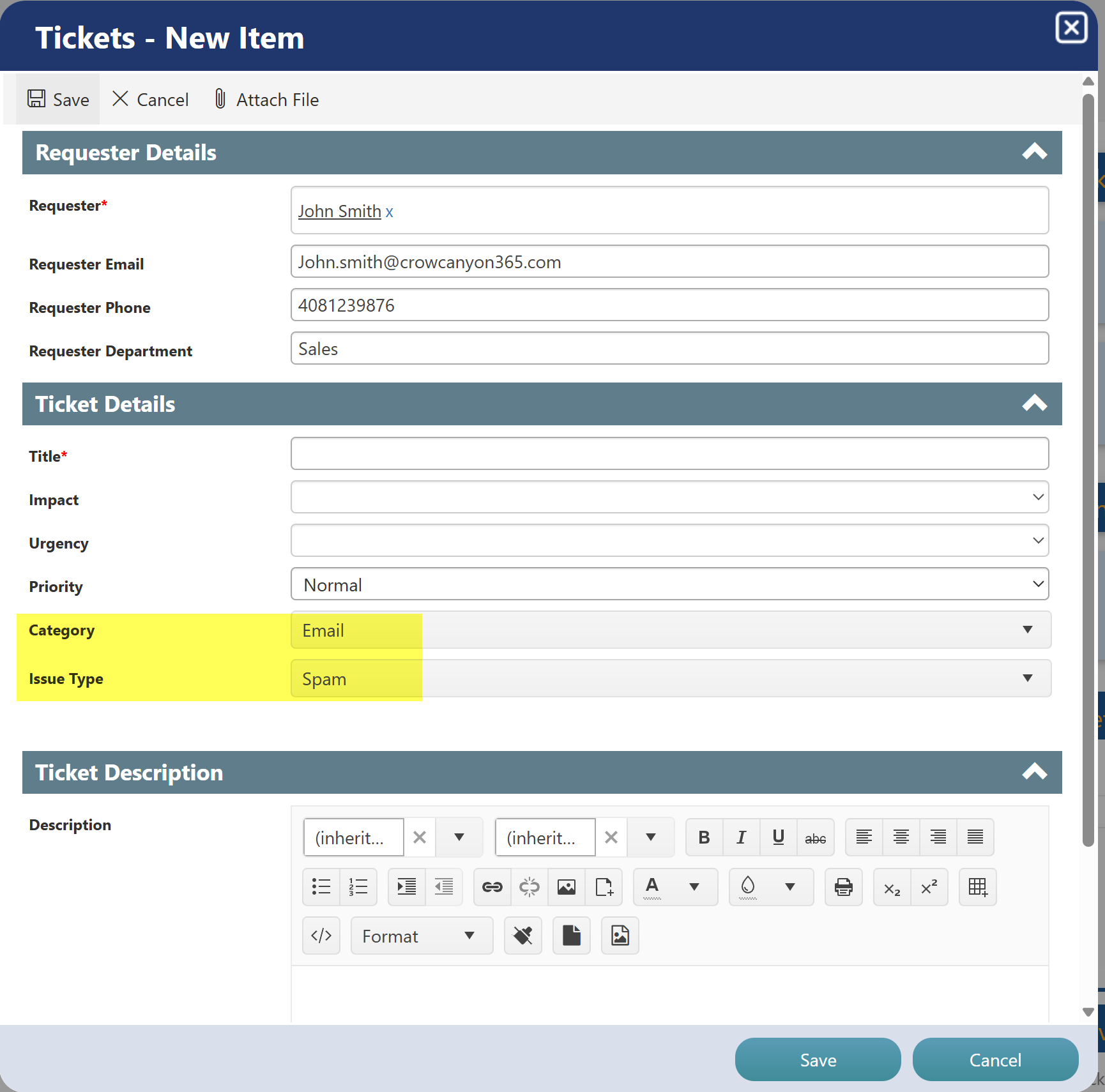
Quick Tickets streamline the process by pre-filling form data based on the selected category, allowing users to submit tickets quickly with minimal input.
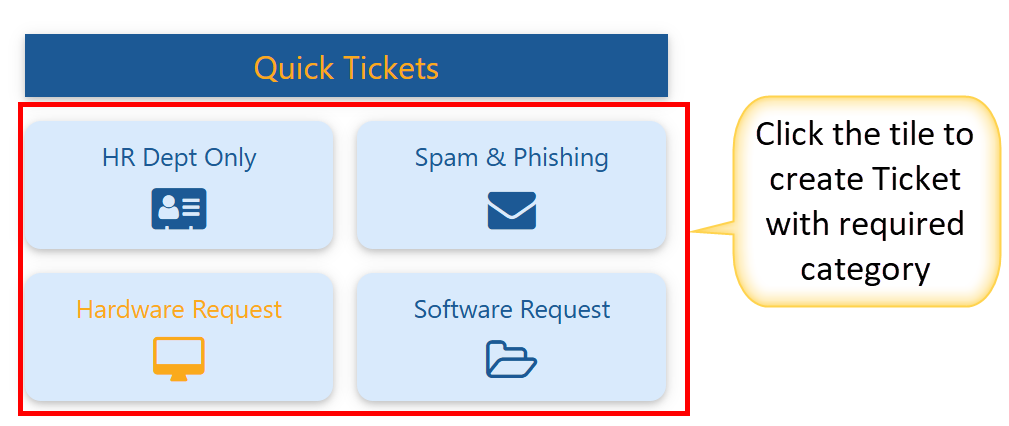
For example, click on ‘Spam & Phishing’ tile in Quick Tickets and you can see that the Category and Issue Type gets populated automatically in the submit form.
3. Useful Links
This section contains helpful shortcuts to commonly used resources, guides, and tools.
Useful Links are typical links connecting you to commonly used resources for your organization.
Example Links:
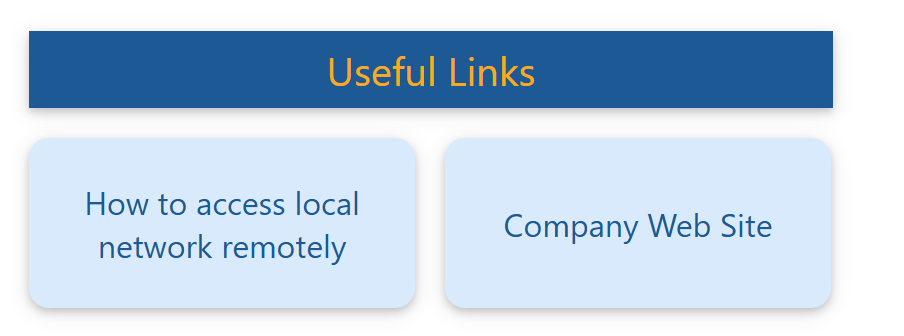
•How to access local network remotely – Instructions for remote access to your office network.
•Company Website – Direct access to the organization’s main site.
These links are curated by the IT or HR teams to ensure users can find critical reference material without searching elsewhere.
4. My Tickets
This section displays a categorized view of all tickets submitted by the current user.
Status Categories Include:
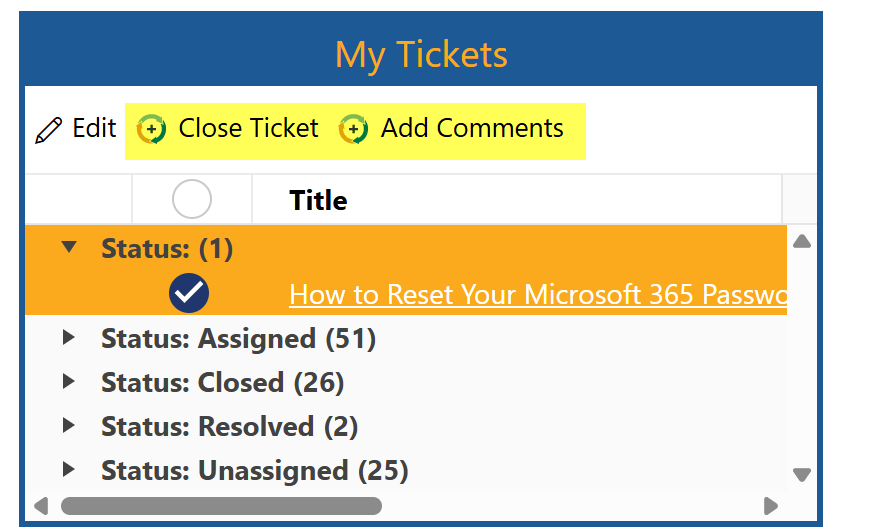
•Status: Assigned – Tickets currently being worked on by IT staff.
•Status: Closed – Tickets that have been completed and closed.
•Status: Resolved – Issues marked as resolved, pending user confirmation.
•Status: Unassigned – Tickets that haven’t yet been assigned to an IT staff member.
User Actions:
•Close Ticket: Mark a ticket as closed if you're satisfied with the outcome.
•Add Comments: Communicate directly with IT staff for updates or to provide more information.
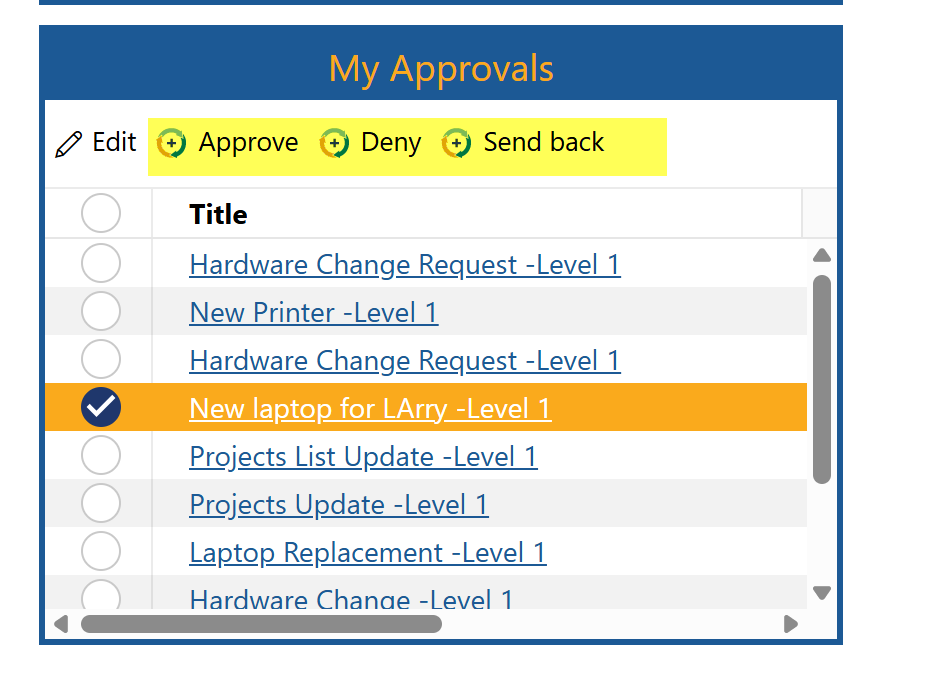
5. My Approvals
The My Approvals section is visible to Logged in users.
Available Actions:
•Approve: Accept and move the request forward.
•Deny: Reject the request with an optional reason.
•Send Back: Return the request for clarification or revision.