Employees can access KB Copilot in the IT Help Desk portal site as shown below:
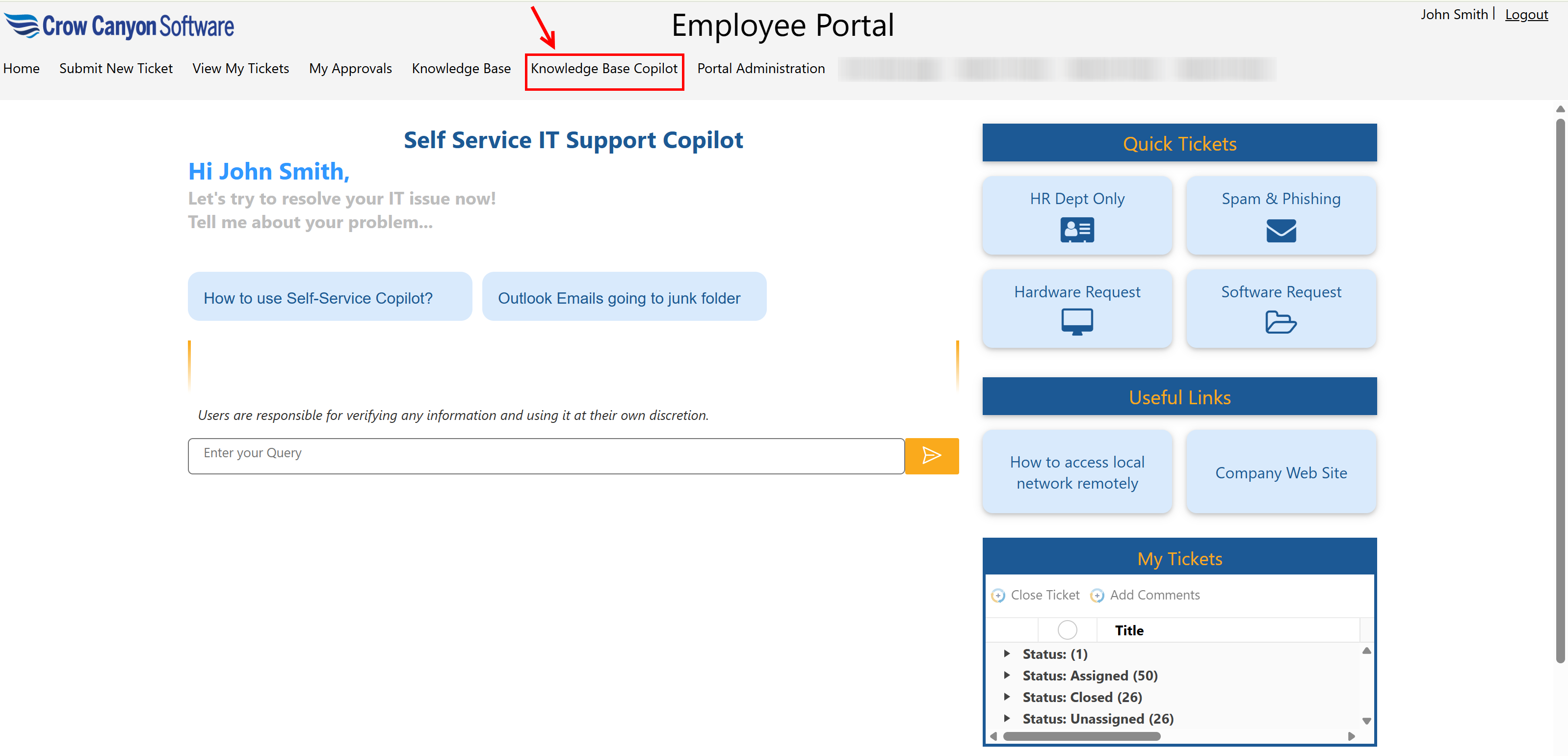
User can enter their query in the chat window available on home page.
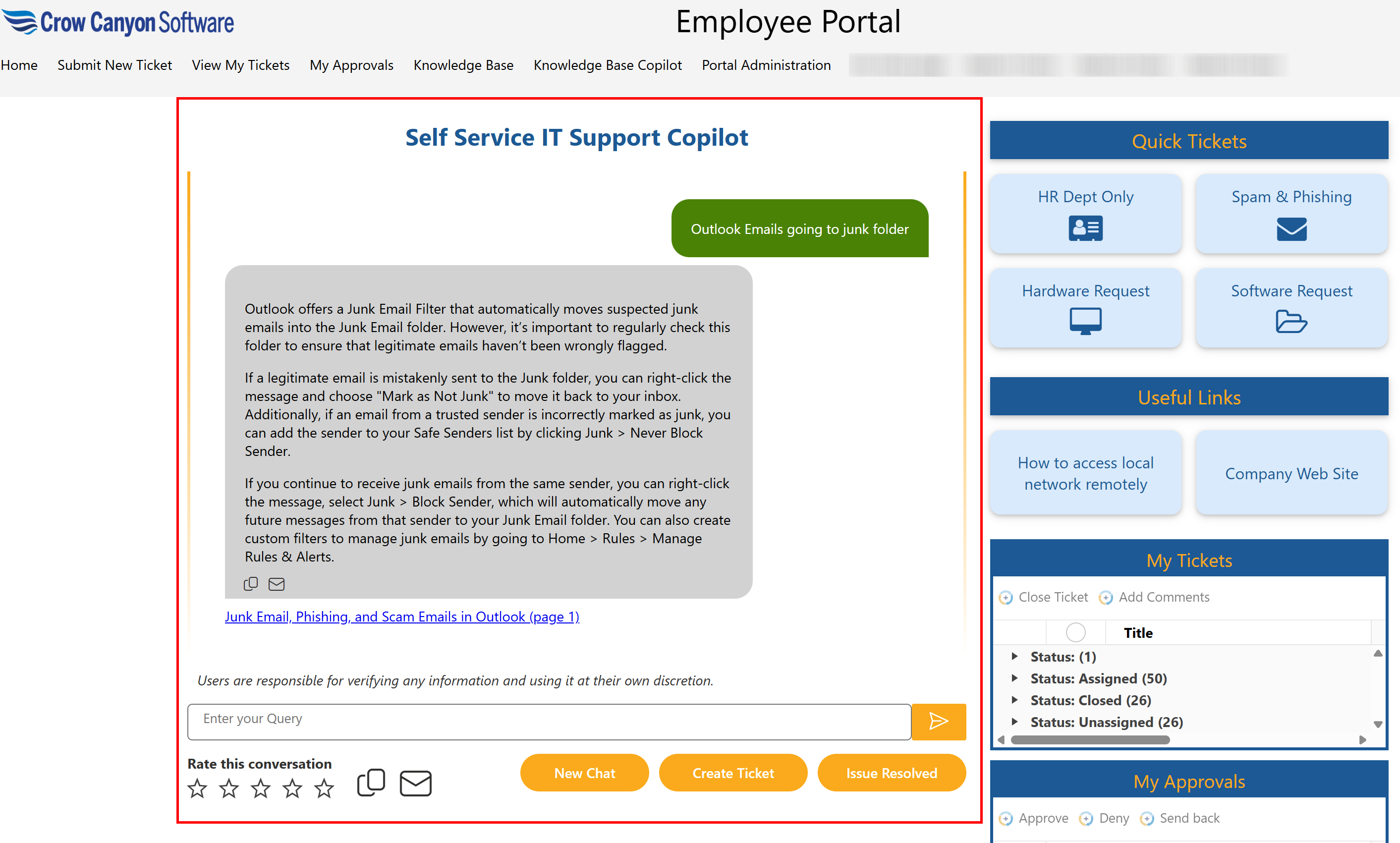
OR,
Click Knowledge Base Copilot in top link bar to open chat window.
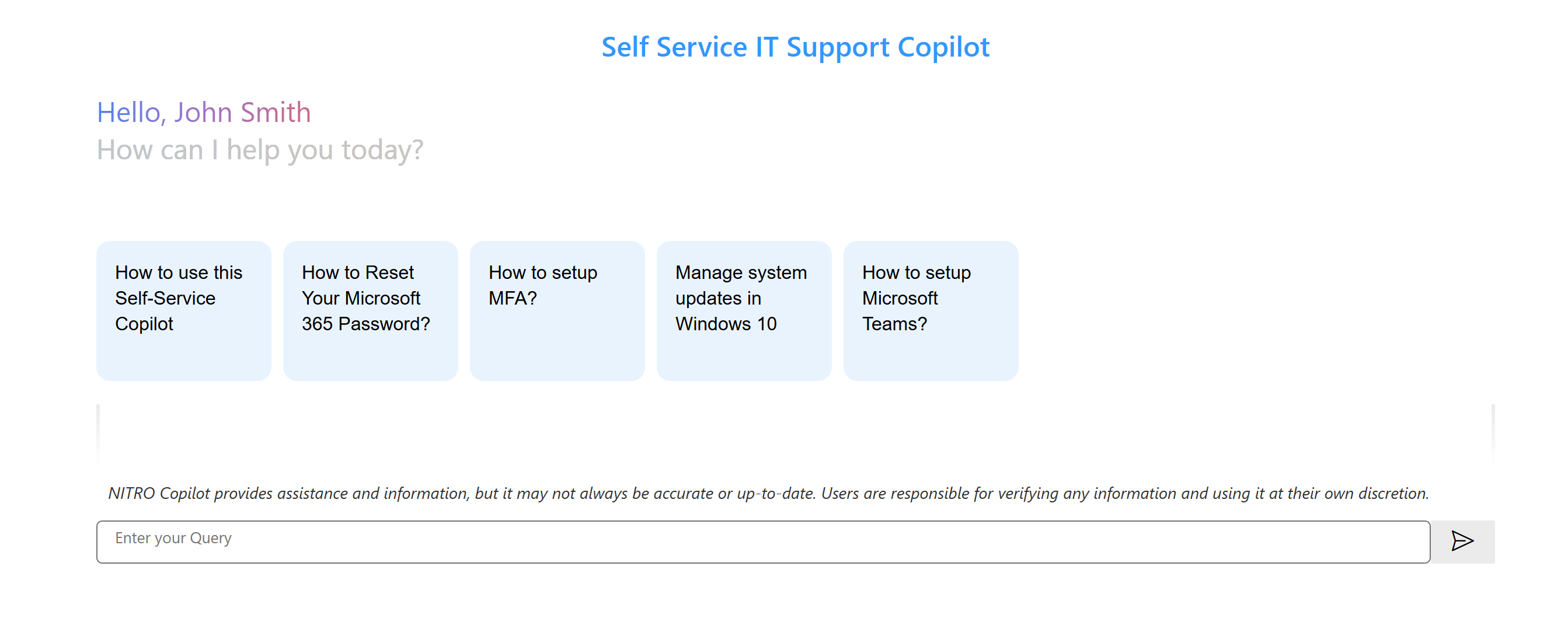
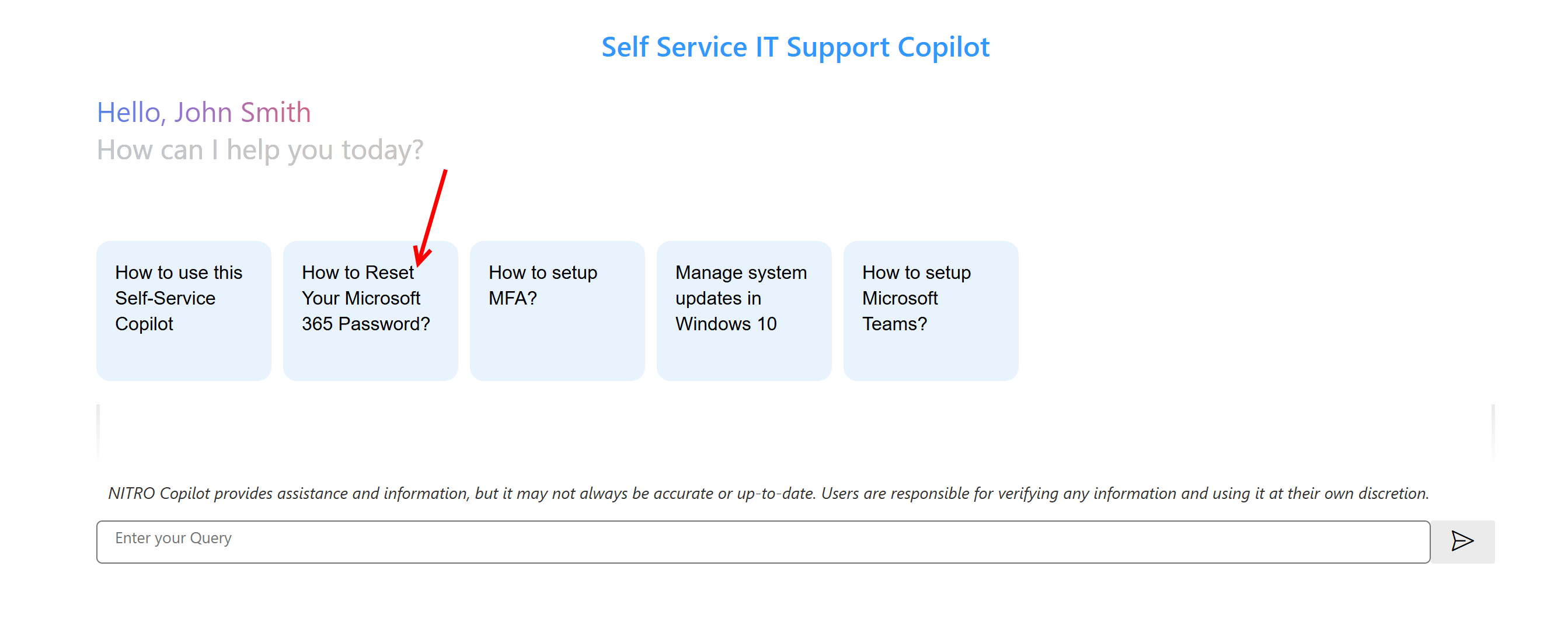
User can select predefined queries for their issue
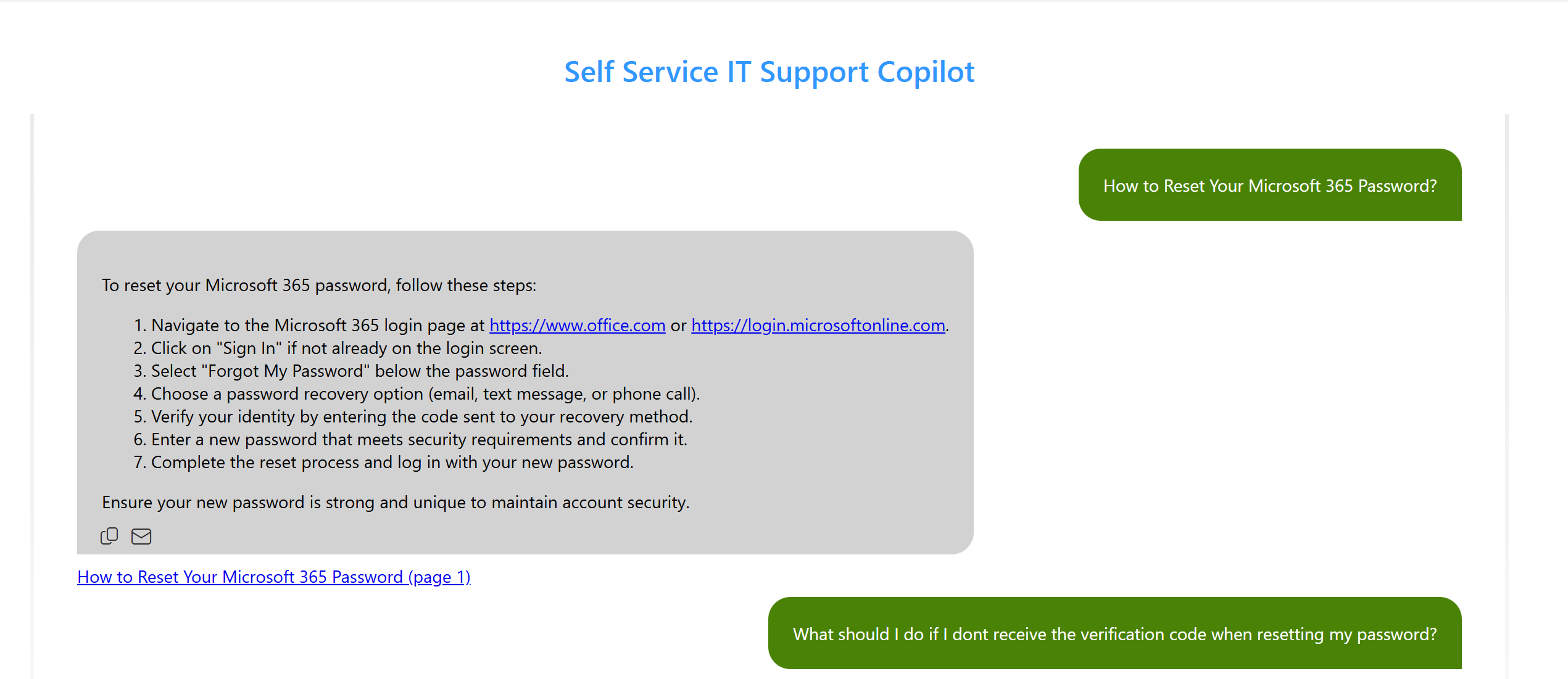
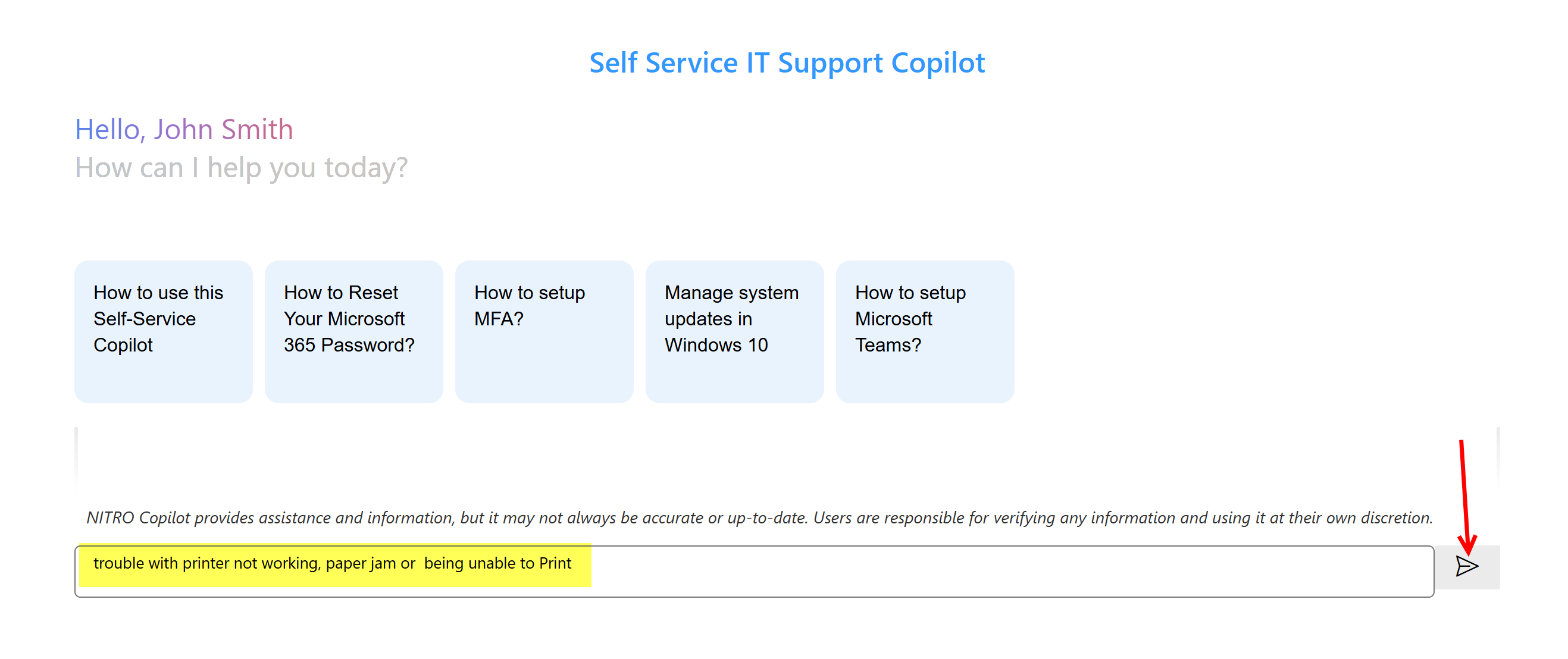
User can enter their query in the chat box and then click enter.
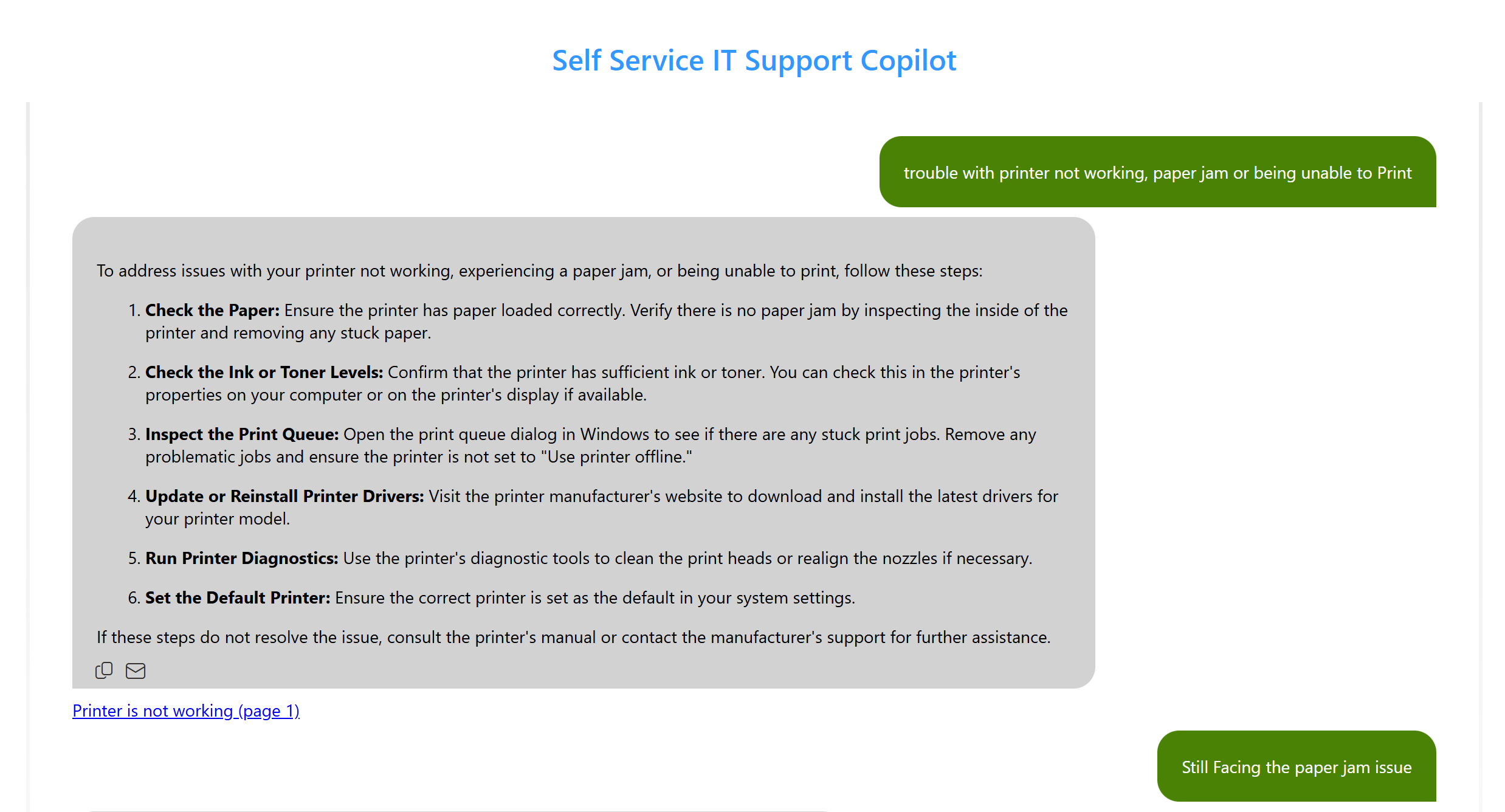
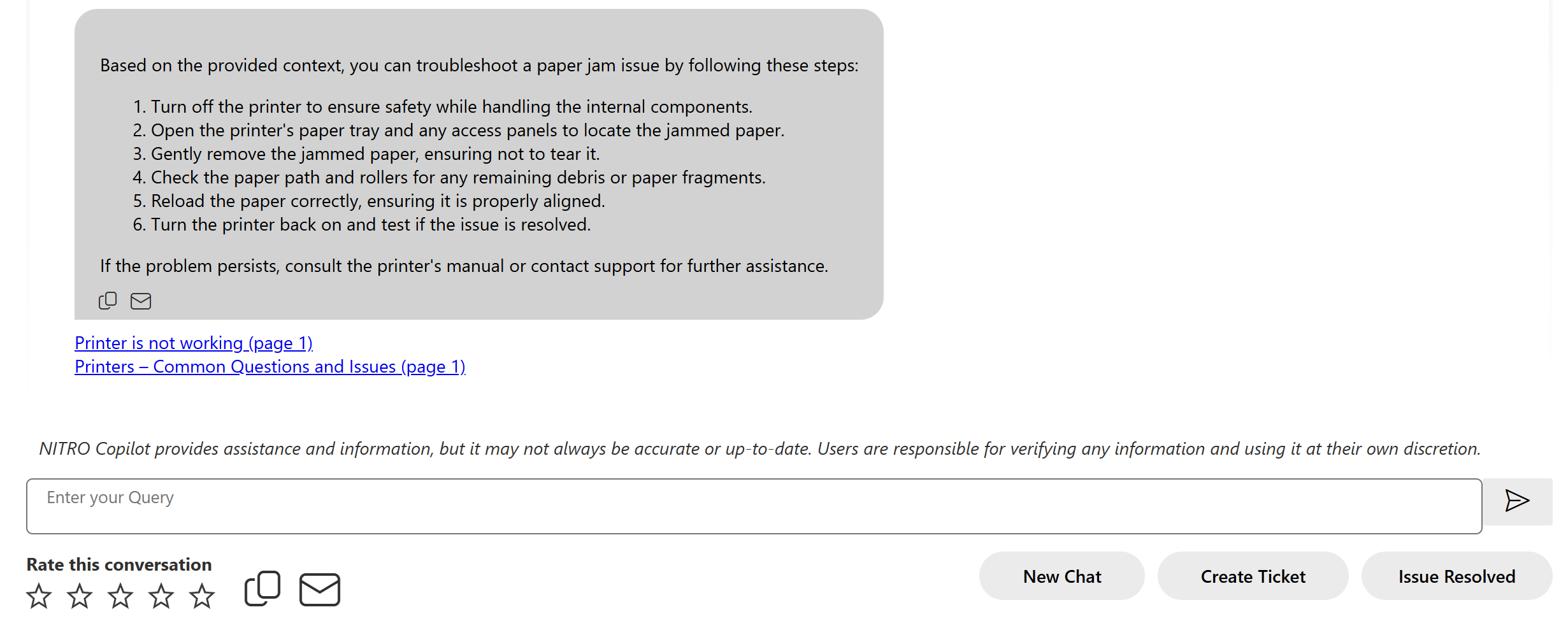
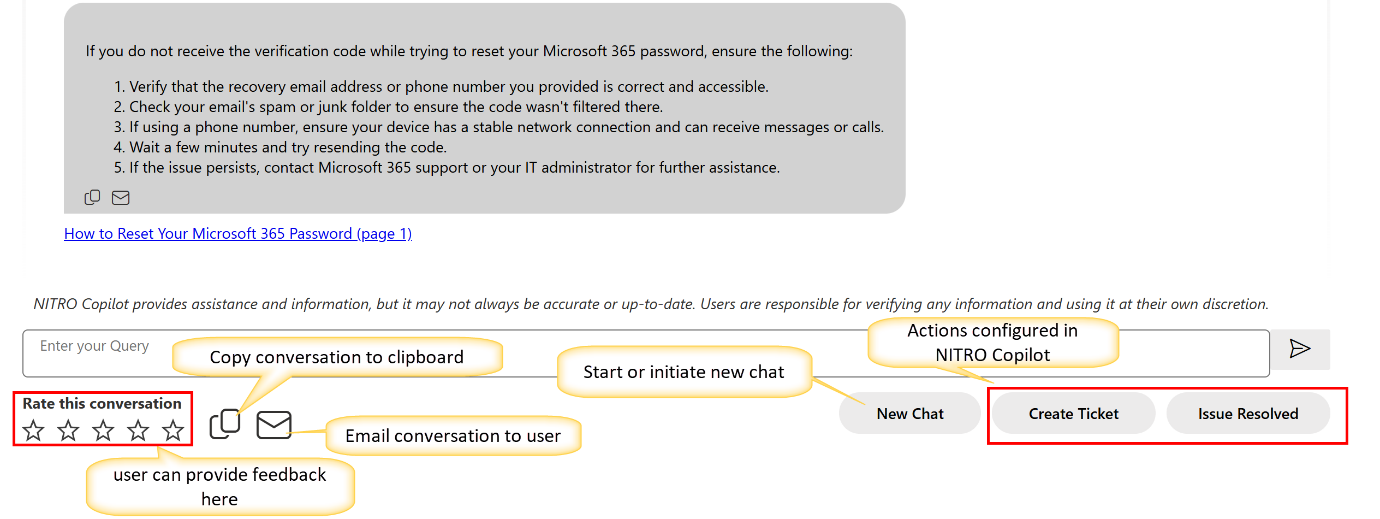
After getting a response from copilot, user can perform the below actions
Create Ticket: If copilot response does not resolve the issue, user can create a Ticket by clicking ‘Create Ticket’ button.
Issue Resolved: If copilot response resolves the issue, user can click ‘Issue Resolved’ button.
Rating: The user can rate the conversations by clicking on the stars icon available at the bottom of the chatbot.’ Rating will be stored in feedback list created by NITRO Copilot.
Copy this conversation to the clipboard: If the user wants to copy the conversation to the clipboard, click the copy icon available at the bottom of the chat window.
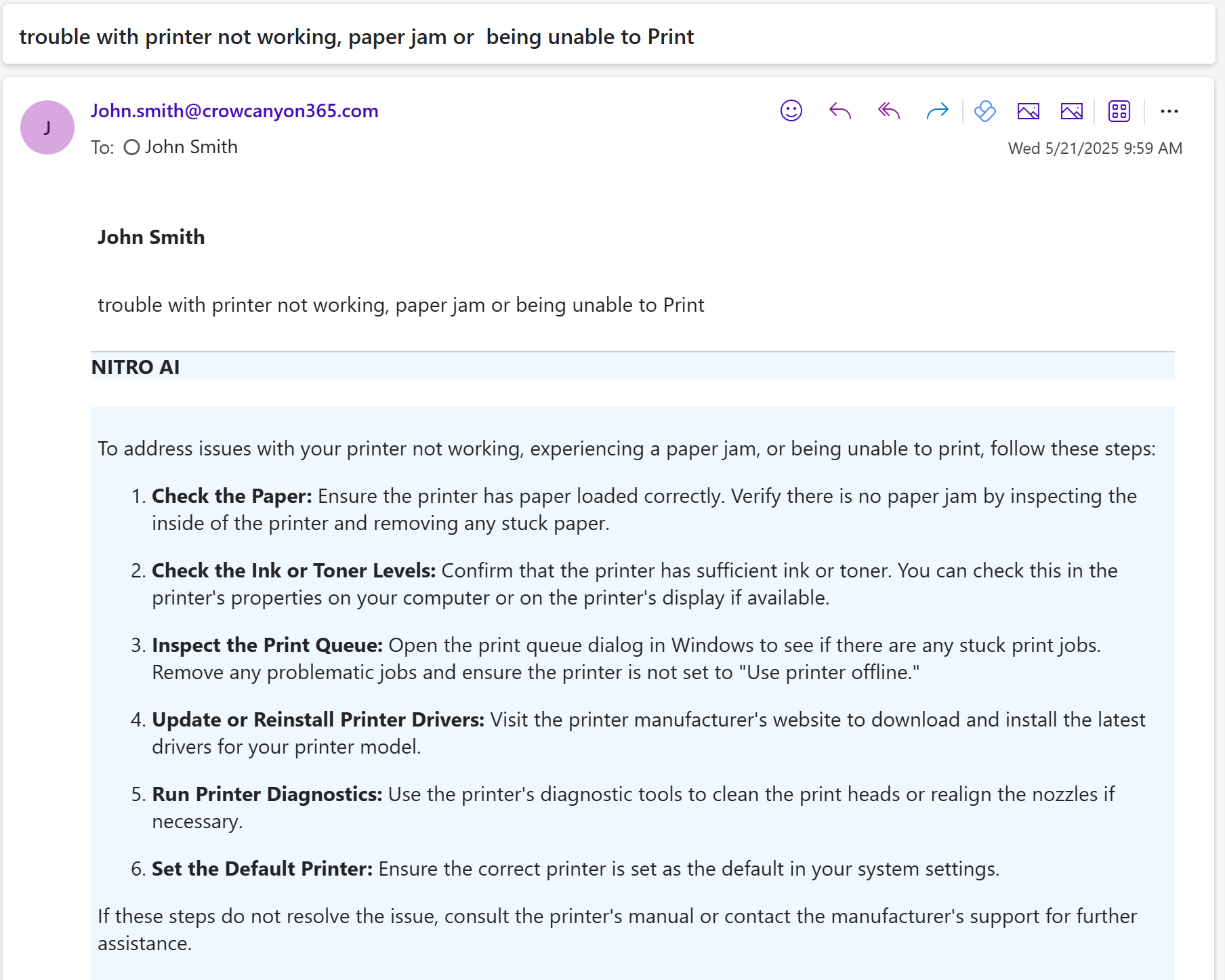
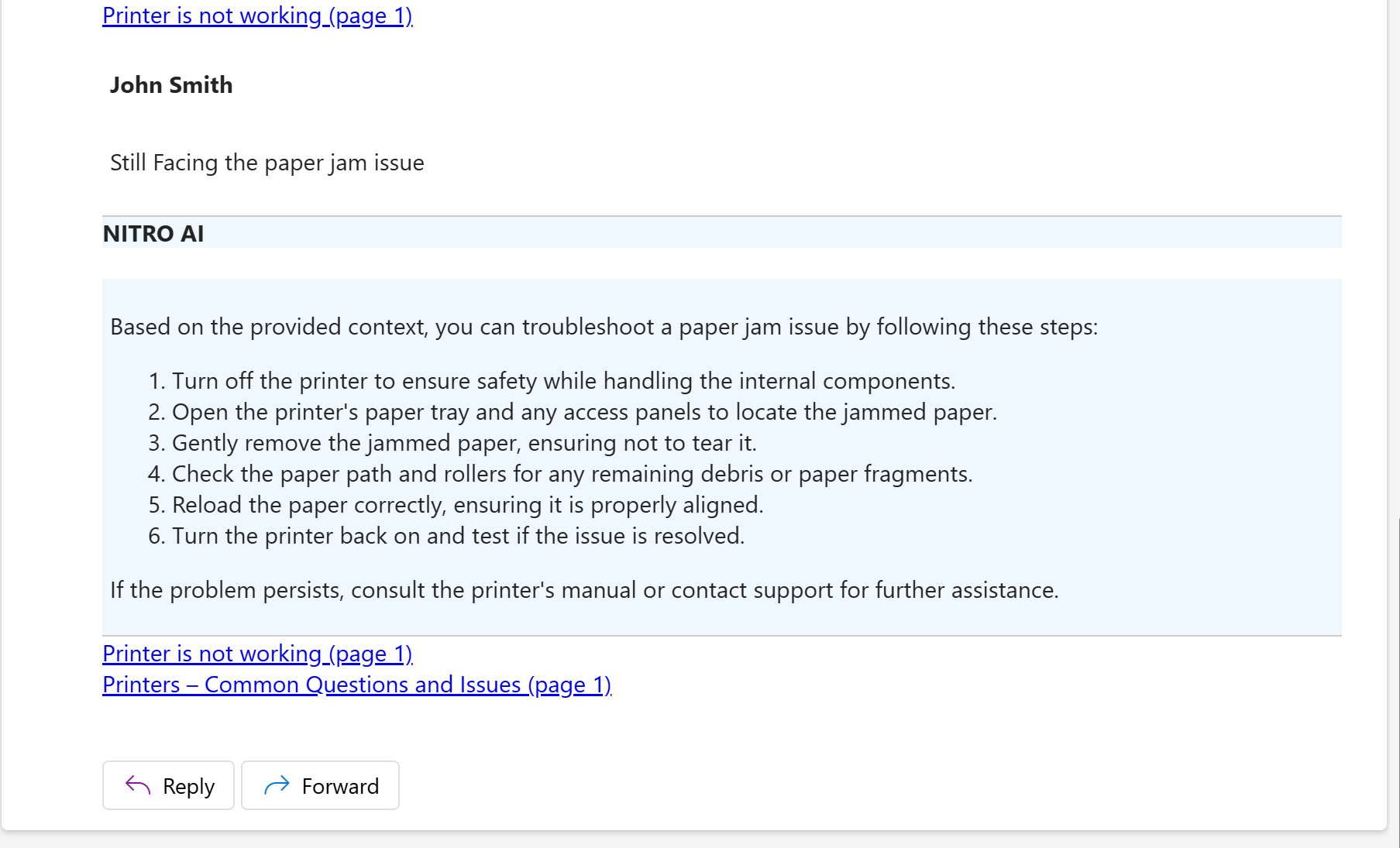
Email this conversation to me: If the user wants to email the conversation to themselves then they can click this email icon.
Sample email received from the NITRO KB Copilot:
Note: The user is allowed to send 15 messages in one chat. Users can start a new chat once this limit is reached.