To enable AI Auto Email
Go to Application Administration -> General Configurations tab -> Click ‘General Configurations’ tile -> ‘AI Settings’ Tab in Configurations form-> Specify below JSON settings in the ‘AI Settings’ column.
This JSON tells the system how to use AI for Auto Email Response
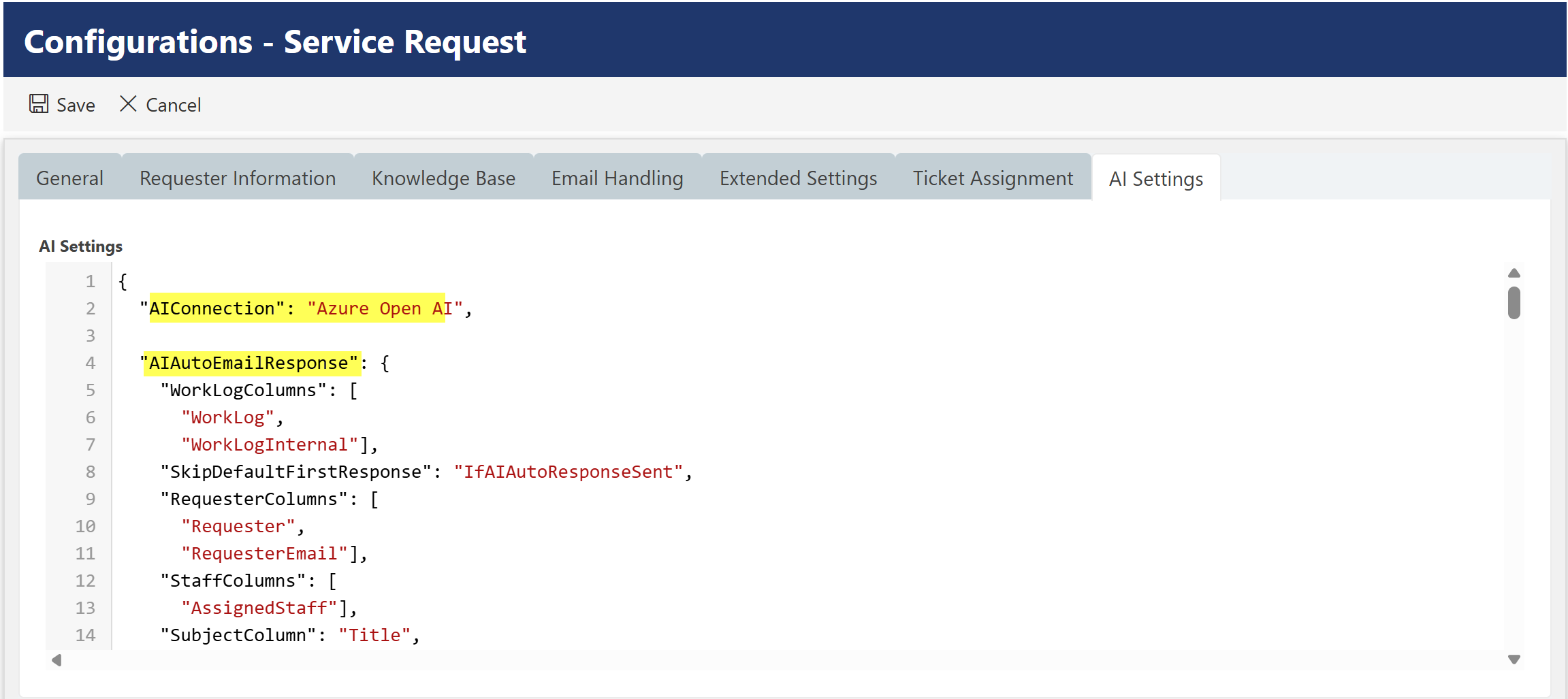
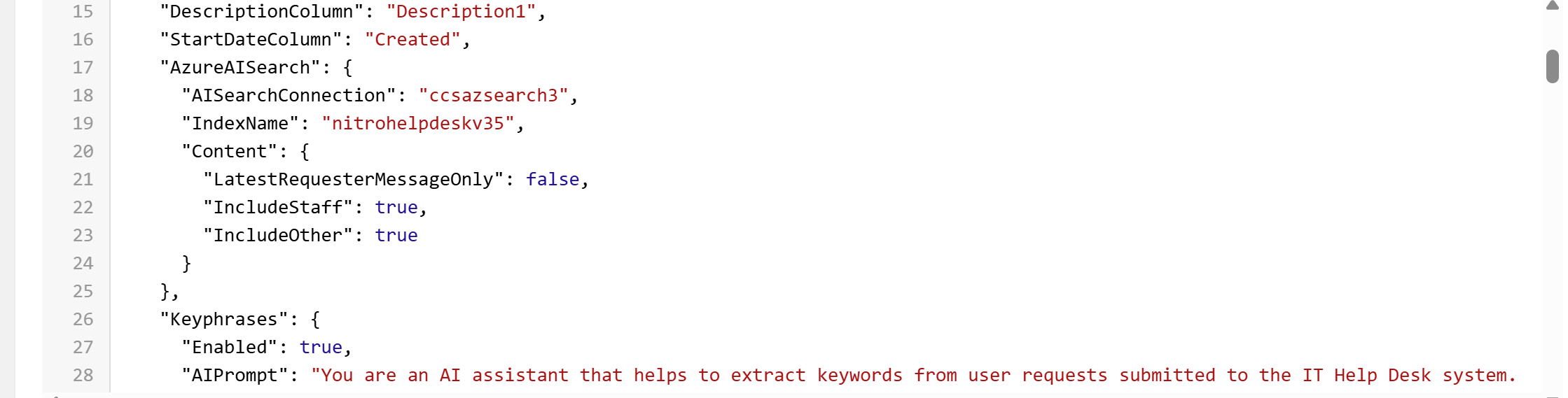
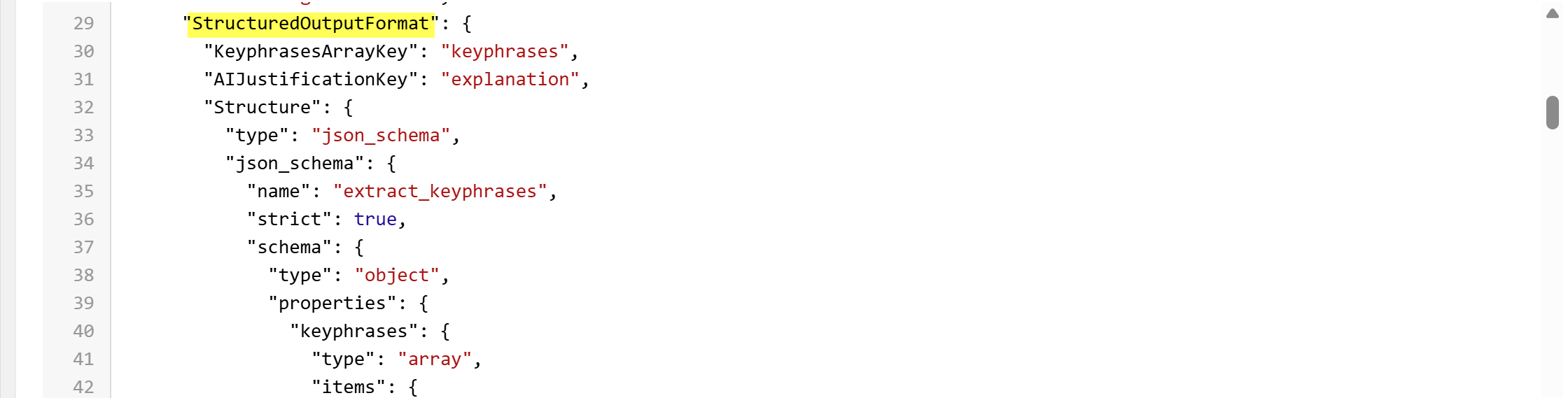
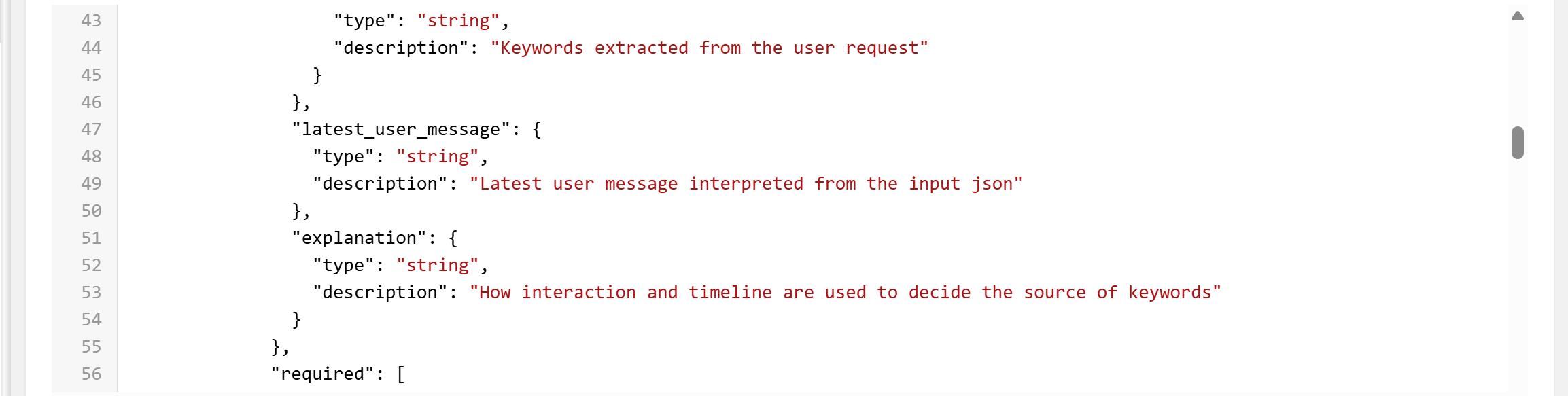
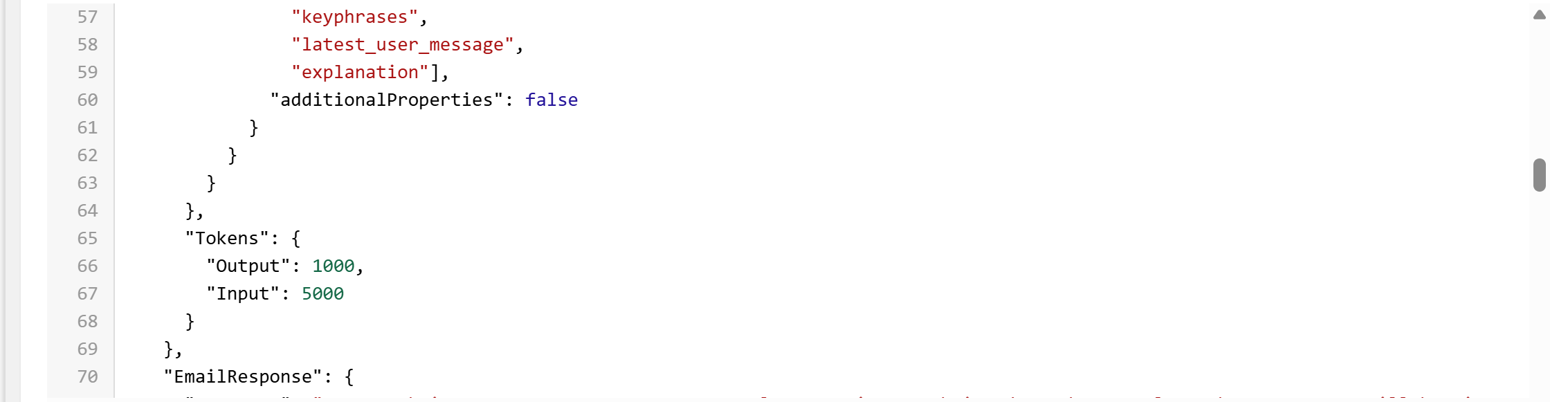
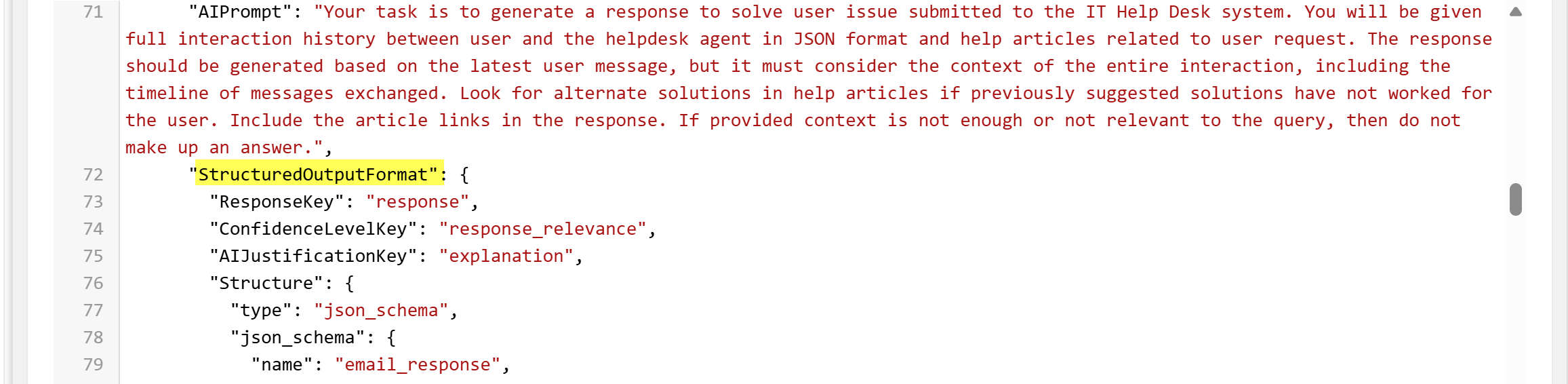
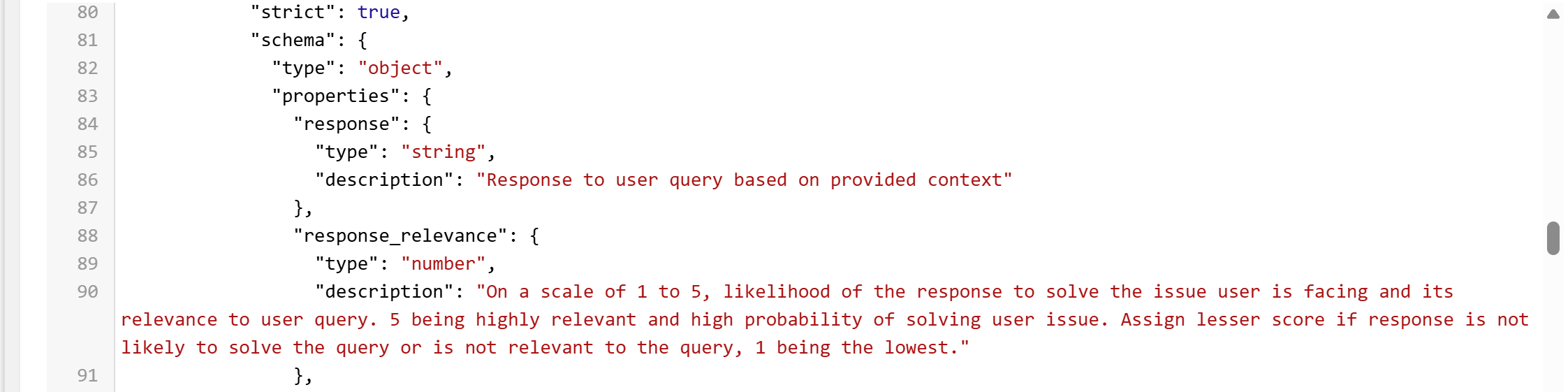
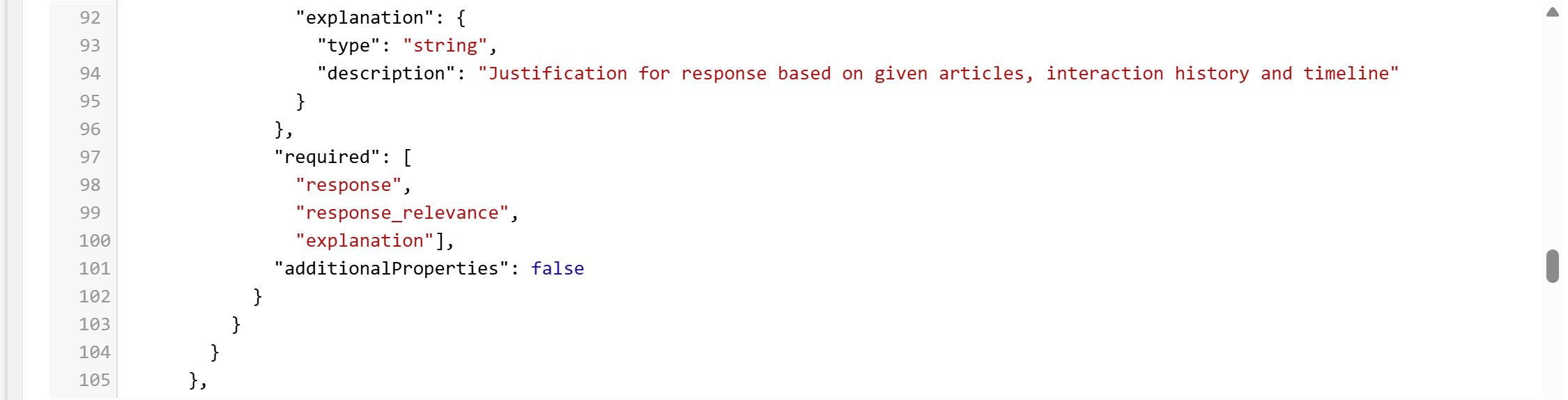
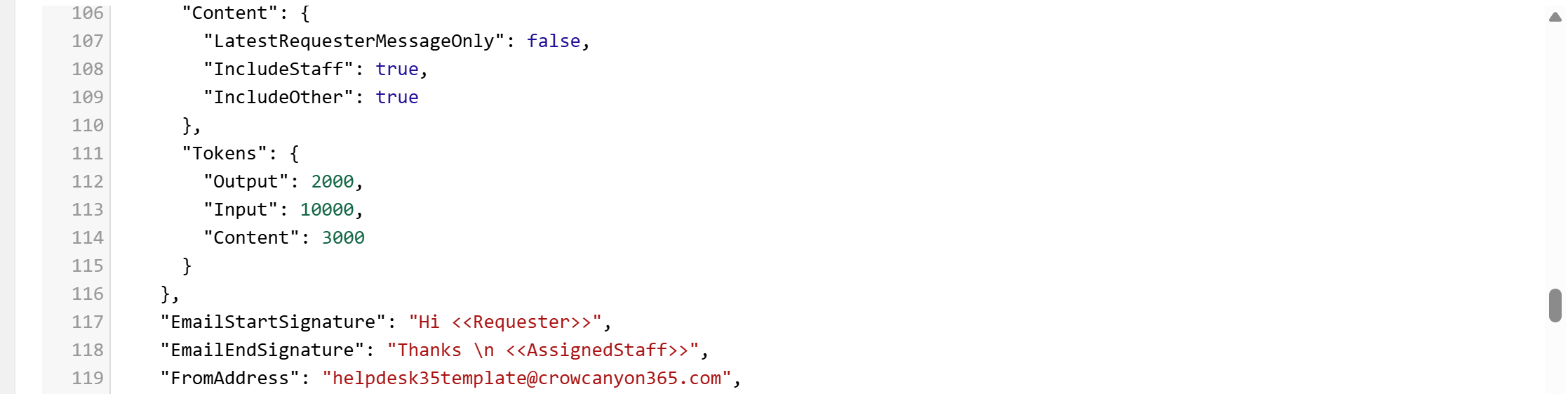
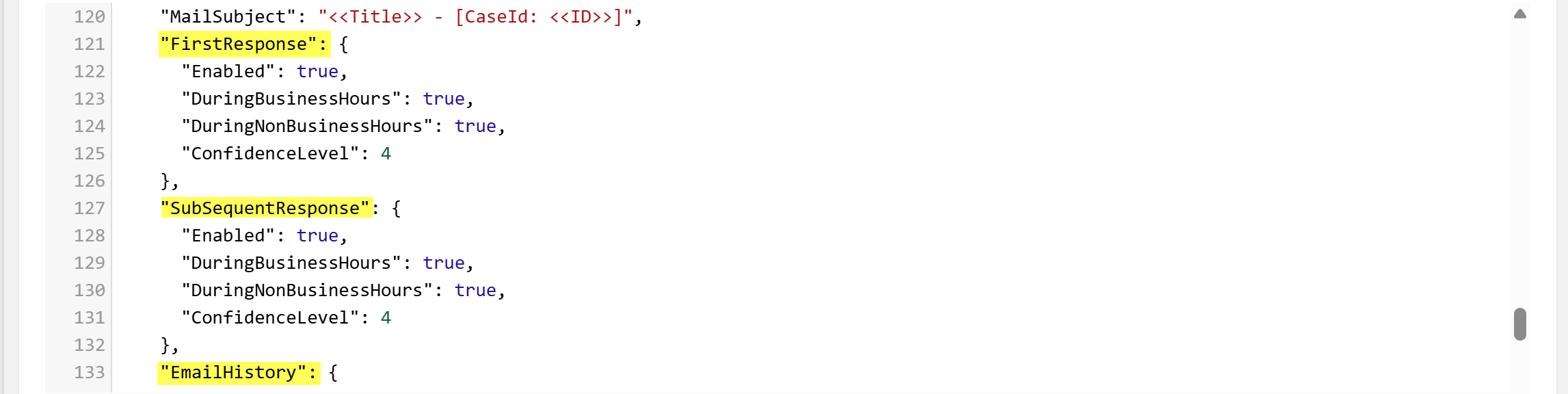
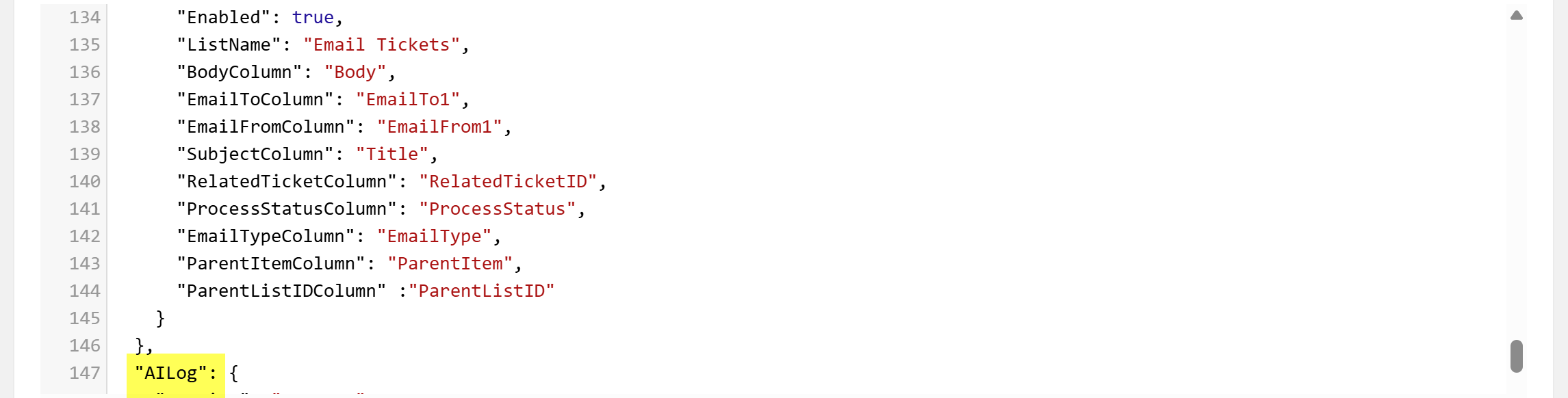
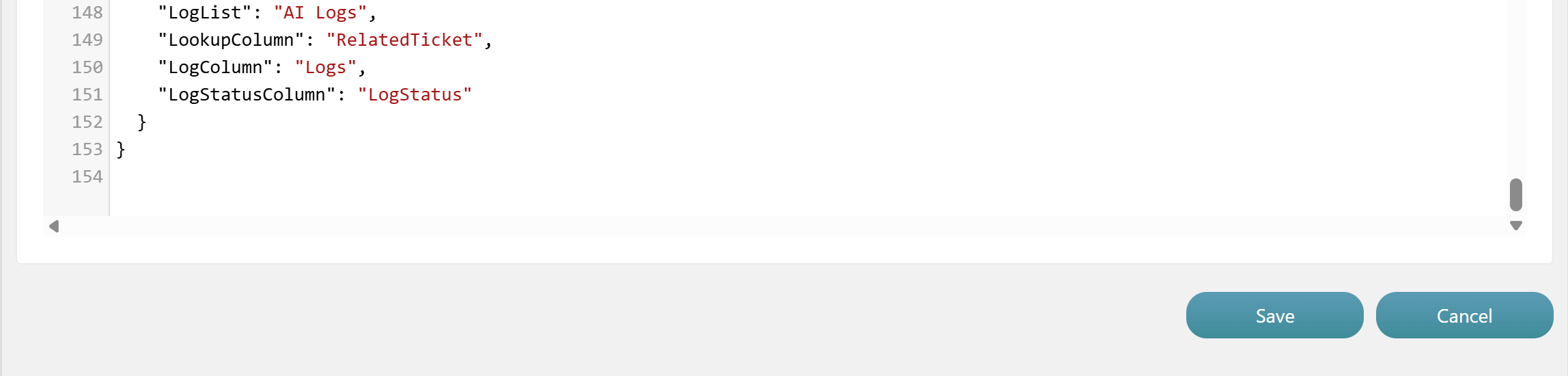
Enter below JSON in ‘AI Settings’ column
{ "AIConnection": "Azure Open AI",
"AIAutoEmailResponse": { "WorkLogColumns": [ "WorkLog", "WorkLogInternal"], "SkipDefaultFirstResponse": "IfAIAutoResponseSent", "RequesterColumns": [ "Requester", "RequesterEmail"], "StaffColumns": [ "AssignedStaff"], "SubjectColumn": "Title", "DescriptionColumn": "Description1", "StartDateColumn": "Created", "AzureAISearch": { "AISearchConnection": "ccsazsearch3", "IndexName": "nitrohelpdeskv35", "Content": { "LatestRequesterMessageOnly": false, "IncludeStaff": true, "IncludeOther": true } }, "Keyphrases": { "Enabled": true, "AIPrompt": "You are an AI assistant that helps to extract keywords from user requests submitted to the IT Help Desk system. These keywords will be used to search related help articles. Given below is full interaction history between user and the helpdesk agent in JSON format. Give priority to keywords in latest user message if it has details related to issue faced by user. Do not include common English words.", "StructuredOutputFormat": { "KeyphrasesArrayKey": "keyphrases", "AIJustificationKey": "explanation", "Structure": { "type": "json_schema", "json_schema": { "name": "extract_keyphrases", "strict": true, "schema": { "type": "object", "properties": { "keyphrases": { "type": "array", "items": { "type": "string", "description": "Keywords extracted from the user request" } }, "latest_user_message": { "type": "string", "description": "Latest user message interpreted from the input json" }, "explanation": { "type": "string", "description": "How interaction and timeline are used to decide the source of keywords" } }, "required": [ "keyphrases", "latest_user_message", "explanation"], "additionalProperties": false } } } }, "Tokens": { "Output": 1000, "Input": 5000 } }, "EmailResponse": { "AIPrompt": "Your task is to generate a response to solve user issue submitted to the IT Help Desk system. You will be given full interaction history between user and the helpdesk agent in JSON format and help articles related to user request. The response should be generated based on the latest user message, but it must consider the context of the entire interaction, including the timeline of messages exchanged. Look for alternate solutions in help articles if previously suggested solutions have not worked for the user. Include the article links in the response. If provided context is not enough or not relevant to the query, then do not make up an answer.", "StructuredOutputFormat": { "ResponseKey": "response", "ConfidenceLevelKey": "response_relevance", "AIJustificationKey": "explanation", "Structure": { "type": "json_schema", "json_schema": { "name": "email_response", "strict": true, "schema": { "type": "object", "properties": { "response": { "type": "string", "description": "Response to user query based on provided context" }, "response_relevance": { "type": "number", "description": "On a scale of 1 to 5, likelihood of the response to solve the issue user is facing and its relevance to user query. 5 being highly relevant and high probability of solving user issue. Assign lesser score if response is not likely to solve the query or is not relevant to the query, 1 being the lowest." }, "explanation": { "type": "string", "description": "Justification for response based on given articles, interaction history and timeline" } }, "required": [ "response", "response_relevance", "explanation"], "additionalProperties": false } } } }, "Content": { "LatestRequesterMessageOnly": false, "IncludeStaff": true, "IncludeOther": true }, "Tokens": { "Output": 2000, "Input": 10000, "Content": 3000 } }, "EmailStartSignature": "Hi <<Requester>>", "EmailEndSignature": "Thanks \n <<AssignedStaff>>", "FromAddress": "helpdesk35template@crowcanyon365.com", "MailSubject": "<<Title>> - [CaseId: <<ID>>]", "FirstResponse": { "Enabled": true, "DuringBusinessHours": true, "DuringNonBusinessHours": true, "ConfidenceLevel": 4 }, "SubSequentResponse": { "Enabled": true, "DuringBusinessHours": true, "DuringNonBusinessHours": true, "ConfidenceLevel": 4 }, "EmailHistory": { "Enabled": true, "ListName": "Email Tickets", "BodyColumn": "Body", "EmailToColumn": "EmailTo1", "EmailFromColumn": "EmailFrom1", "SubjectColumn": "Title", "RelatedTicketColumn": "RelatedTicketID", "ProcessStatusColumn": "ProcessStatus", "EmailTypeColumn": "EmailType", "ParentItemColumn": "ParentItem", "ParentListIDColumn" :"ParentListID" } }, "AILog": { "LogList": "AI Logs", "LookupColumn": "RelatedTicket", "LogColumn": "Logs", "LogStatusColumn": "LogStatus" } } |
Columns used in above configuration
•AIConnection: Specifies the AI service (in this case, Azure Open AI) used for AI auto email response.
To create azure services, refer this article: https://www.crowcanyon.help/article/747/
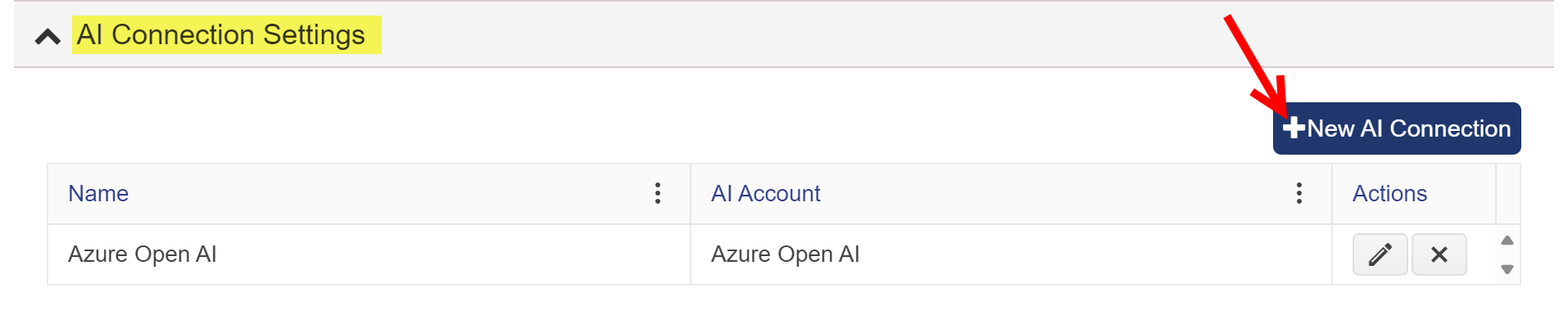
To configure AI connection settings in NITRO Site Settings, go to site settings ->Crow Canyon NITRO Site Settings -> AI Connection Settings -> New AI Connection
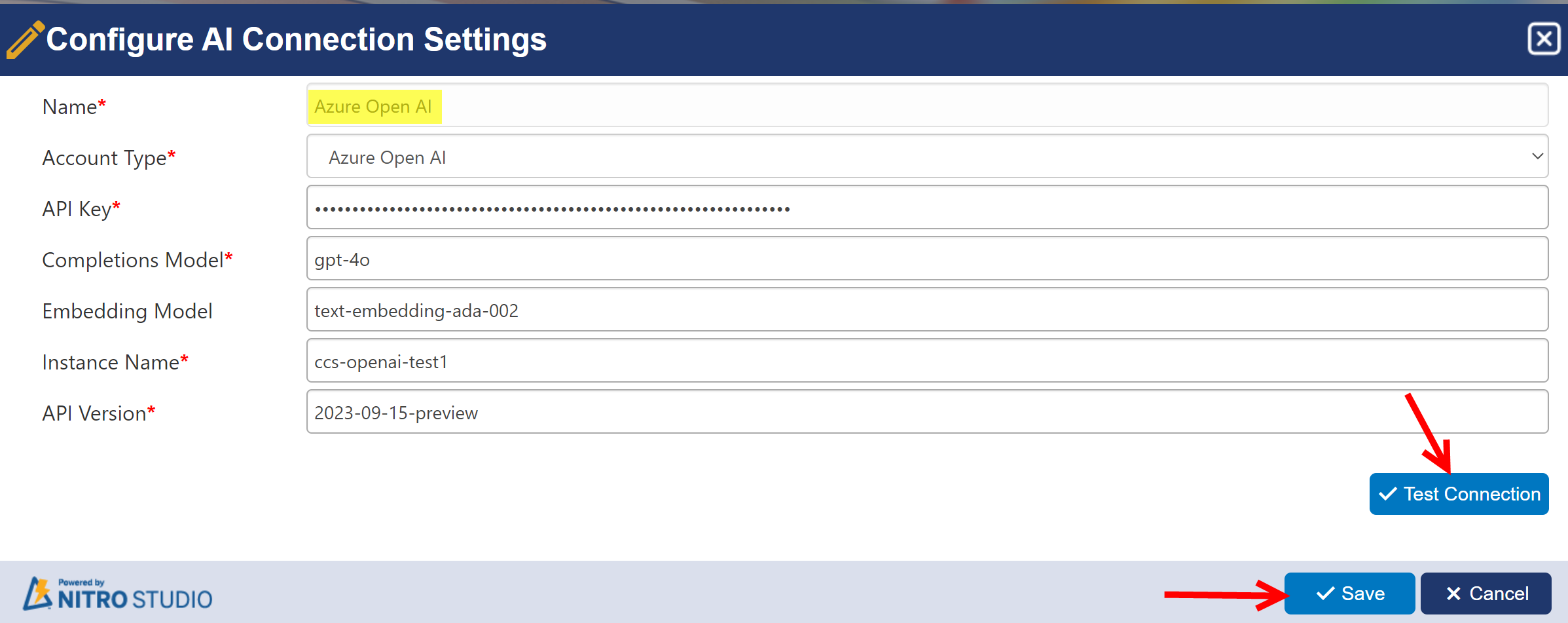
1.WorkLog and First Response Details
•WorkLogColumns:
oThe AI response will be added to the WorkLog and WorkLogInternal columns.
•SkipDefaultFirstResponse
Purpose: Controls whether the default first response (the standard email notification when a ticket is created) should be skipped if an AI auto-response is already sent.
Values:
o"IfAIAutoResponseSent": Skip the default notification only if an AI-generated response has already been sent.
o"Always": Always skip the default notification, regardless of AI response.
Prevents duplicate or unnecessary email notifications when AI already responds.
2. Requester and Staff Details
•RequesterColumns:
oAI uses the fields Requester and RequesterEmail to identify who submitted the ticket and where to send email
•StaffColumns:
oThe assigned staff details are pulled from the AssignedStaff column. It allows AI-generated emails to notify the appropriate staff member.
3.Ticket Context
•SubjectColumn:
oThe ticket subject is taken from the Title column. It helps AI summarize or include this in the auto-response for clarity.
•DescriptionColumn:
oColumn containing the ticket’s detailed description. Example: Description
oAI will use this as input for keyword extraction and response generation.
•StartDateColumn:
oDefines the column storing ticket creation date.
Example: "Created" → Helps determine when the request started, can be used for AI context or logs.
4.Azure AI Search Integration
It Controls how the AI searches the knowledge base (articles, FAQs) using Azure AI Search.
Sub-settings:
•AISearchConnection: Name of the Azure Search connection (e.g., "ccsazsearch3"). The AI searches previous tickets/articles using the Azure Search connection ccsazsearch3.
To configure AI Search Connection in NITRO Site Settings, go to site settings ->Crow Canyon NITRO Site Settings -> AI Connection Settings -> New AI Connection

A window will pop up, there configure AI search settings
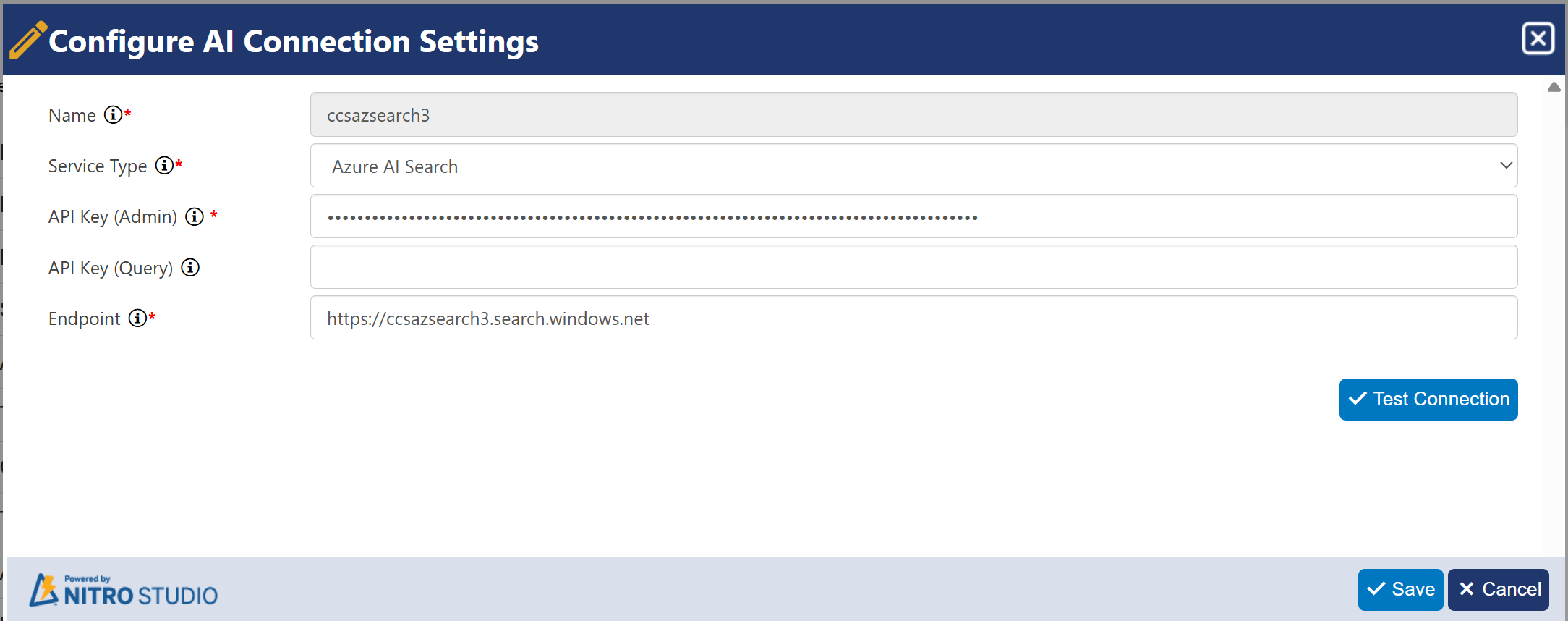
•IndexName: The search index used to fetch relevant articles (e.g., "nitrohelpdeskv35").
5.Content Settings:
•LatestRequesterMessageOnly:
otrue: Only the latest requester message is used to search for solutions.
ofalse: Uses the full conversation history to determine context.
•IncludeStaff:
otrue: Includes staff messages in the search context.
ofalse: Ignores staff responses.
•IncludeOther:
otrue: Includes system or other notes in the search.
ofalse: Excludes all non-requester/staff content.
6.AI Keyphrase Extraction
Extracts keywords from the ticket using OpenAI to help with article search and categorization.
•Enabled
Enables or disables AI-based keyword extraction.
Values:
otrue → Keywords will be extracted using AI.
ofalse → No keyword extraction will happen.
•AIConnection
Name of the Azure OpenAI connection used for keyword extraction.
Example: "Azure Open AI"
•AIPrompt
Custom prompt sent to the AI to extract keywords from the ticket conversation.
Details: Instructs AI to extract only meaningful keywords, not common words, and prioritize the latest message.
•Structured Output:
Output is structured using a JSON schema with:
okeyphrases: extracted keywords.
olatest_user_message: recent user input.
oexplanation: how AI picked keywords.
•IncludeAIJustification
Whether to include the AI’s reasoning for extracted keywords.
Values:
otrue → AI will explain why it picked each keyword.
ofalse → Just keywords, no explanation.
•Tokens
Controls the AI prompt and output length.
oInput: Max number of characters (tokens) AI will process.
oOutput: Max number of tokens AI can return in its response.
EmailResponse
This section defines how AI generates, and formats replies to user tickets. It's a sub-setting under the main "AIAutoEmailResponse" section and is central to crafting AI-powered email responses.
"AIConnection": "Azure Open AI"
•Specifies the AI engine used for generating responses.
•In this case, it’s Azure OpenAI, meaning it’s calling Microsoft’s hosted version of OpenAI’s GPT model.
"AIPrompt" (Extensive instruction to the AI)
This setting gives the AI clear instructions on how to write a helpful email reply.
It tells the AI to:
•Read the full conversation (in JSON format) between the user and the helpdesk.
•Use help articles (if any are available) to find answers.
•Focus mainly on the user's latest message but also understand the full conversation for context.
•If the user has already been given a solution before, and they're saying it didn’t help, the AI should look for a different solution using the help articles.
•If the AI can’t understand the issue from the conversation, it should not guess an answer. Instead, it should respond with:
“I do not have information to answer this question.”
Structured Output:
•response: AI’s email content
•response_relevance: Score from 1–5 for how well the response matches the query
•explanation: Reason behind AI's answer
"IncludeAIJustification": true / false
•True: AI includes reasoning/explanation behind the response in the email.
•False: AI only returns the answer—no explanation or justification provided.
"Content" (What content from the ticket is passed to AI)
This controls which parts of the conversation are shared with the AI when generating a response.
"LatestRequesterMessageOnly": true / false
•True: Only the most recent message from the requester is sent to AI.
•False: The entire conversation history is sent.
"IncludeStaff": true / false
•True: Messages from staff/technicians are included in the context.
•False: Staff messages are excluded from the AI's view.
"IncludeOther": true / false
•True: Includes messages from other sources (e.g., system-generated, watchers).
•False: Excludes those.
"Tokens" (Controls processing limits)
"Output": 2000,
"Input": 10000,
"Content": 3000
Token Type |
Purpose |
Input |
Max characters from the ticket + articles that can be input to AI |
Output |
Max length of AI’s response (2000 tokens ≈ 1500 words). |
Content |
Optional, may limit how much message body from ticket is considered. |
Email Formatting & Metadata
"EmailStartSignature": "Hi <<Requester>>"
•Greeting line in the generated email.
•<<Requester>> is a placeholder, dynamically replaced by the actual requester’s name.
"EmailEndSignature": "Thanks\n <<AssignedStaff>>"
•Closing signature.
•<<AssignedStaff>> is replaced with the name of the person assigned to the ticket.
"FromAddress": "helpdesk35template@crowcanyon365.com"
•The email address from which the AI response is sent.
"MailSubject": "<<Title>> - [CaseId: <<ID>>]"
•Defines how the subject line of the email is constructed.
•Uses:
oTicket Title
oTicket CaseId (for tracking)
•Example: "VPN not connecting - [CaseId: 3491]"
Response Triggers
"FirstResponse"
Used when sending the very first AI-generated email reply.
•Enabled: true – AI is allowed to send first response automatically.
•DuringBusinessHours: true – AI sends the first response only during business hours.
For business hours settings,
Go to the ‘Configurations’ list -> List Settings ->Crow Canyon NITRO Forms ->Ticket Assignment Tab -> check settings in Business Time Configurations column
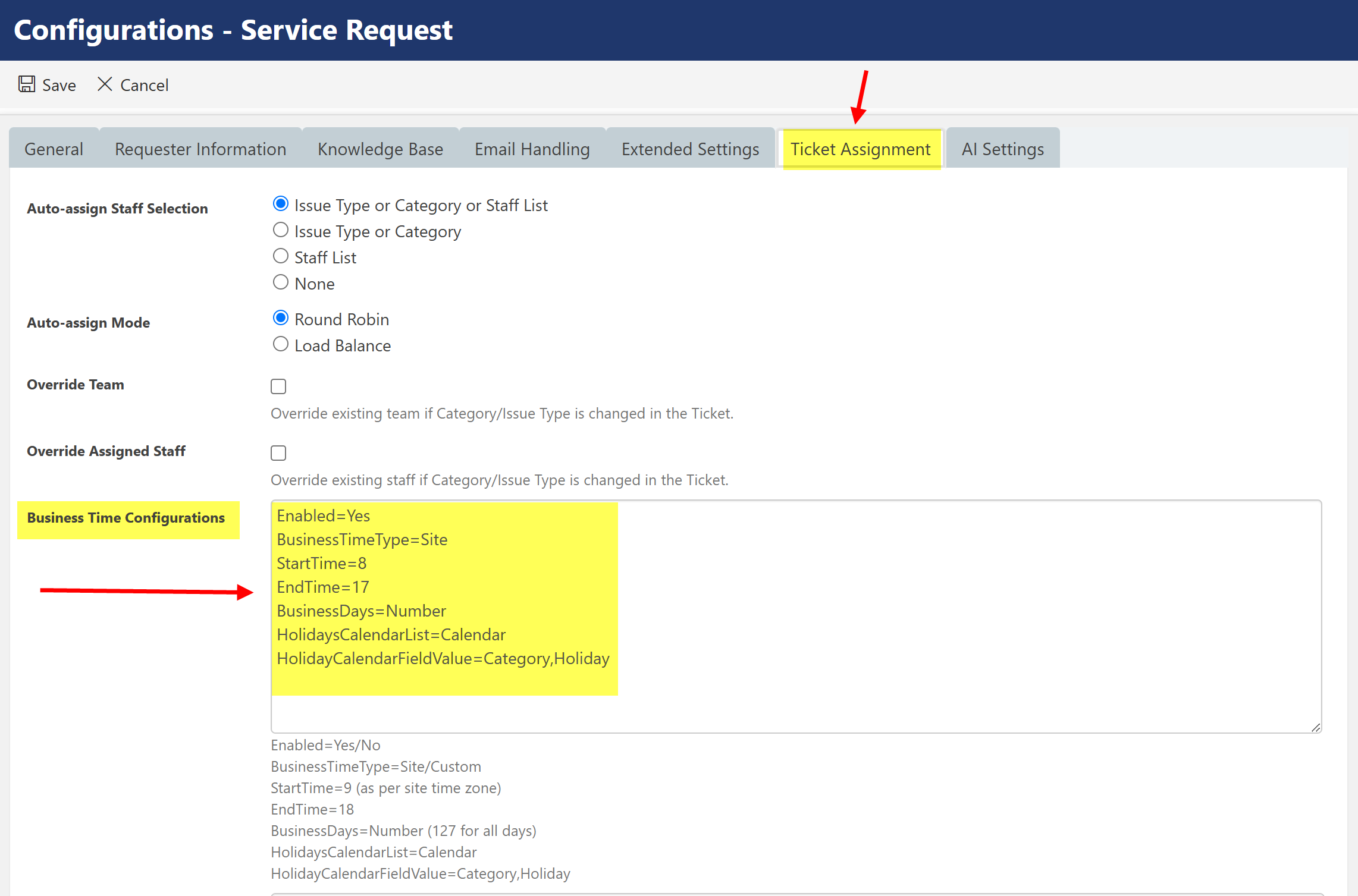
JSON Settings:
Enabled=Yes BusinessTimeType=Site StartTime=8 EndTime=17 BusinessDays=Number HolidaysCalendarList=Calendar HolidayCalendarFieldValue=Category,Holiday |
Setting |
Explanation |
Enabled = Yes |
Business Hours logic is turned on. |
BusinessTimeType = Site |
The business hours will follow the Site's time zone (not system or user-specific time). |
StartTime = 8 |
Defines the start of the workday as 8:00 AM |
EndTime = 17 |
Defines the end of the workday as 5:00 PM. Uses the 24-hour time format (17 = 5:00 PM).
|
BusinessDays = Number |
Indicates which days are considered business days. Usually, this is a number list like 1,2,3,4,5 for Monday to Friday. |
HolidaysCalendarList = Calendar |
Refers to a SharePoint list named Calendar which stores holiday info. |
HolidayCalendarFieldValue = Category,Holiday |
Specifies the fields in that calendar list used to identify holiday entries. (e.g., "Category" = "Holiday" means these entries are non-working days) |
Impact of these settings on First Email Response
DuringBusinessHours: true |
The system will only allow AI email responses during defined business hours (8 AM – 5 PM on business days, excluding holidays).
|
DuringBusinessHours: false |
AI email responses won’t be restricted to business hours, and may run any time (if other conditions allow it) |
•DuringNonBusinessHours: true – AI sends the first response outside business hours.
Note: Both hour flags must be false to allow sending any time.
•ConfidenceLevel: 4 – Only send if AI is highly confident (on a scale of 1–5).
This setting ensures that AI replies only when it’s confident about its answer.
"SubSequentResponse"
Used for all follow-up AI replies (after the first one).
•Enabled: true – AI can send follow-up responses automatically.
•DuringBusinessHours: true – Only during business hours.
•DuringNonBusinessHours: true – Only outside business hours.
•ConfidenceLevel: 4 – Response is sent if AI’s confidence meets this threshold.
EmailHistory Settings
These settings manage how email communication history is stored and retrieved for a ticket in NITRO Helpdesk. When enabled, the system tracks emails exchanged with users by saving them in a configured SharePoint list.
"Enabled": true
•Enables the email history tracking feature.
•If set to false, the system will not maintain or fetch past emails for reference.
"ListName": "Email Tickets"
•Specifies the name of the SharePoint list where email history is stored.
•In this case, the list is called Email Tickets.
"BodyColumn": "Body"
•Indicates the column in the list that contains the body/content of the email.
"EmailToColumn": "EmailTo1"
•Refers to the column that stores the recipient(s) of the email.
"EmailFromColumn": "EmailFrom1"
•Refers to the column that stores the sender’s address.
"SubjectColumn": "Title"
•Indicates the column that stores the email subject line.
"RelatedTicketColumn": "RelatedTicketID"
•Stores the ID of the associated ticket.
•Used to link each email back to its corresponding helpdesk ticket.
"ProcessStatusColumn": "ProcessStatus"
•Refers to the column that tracks the processing status of the email (e.g., pending, sent, Linked etc).
"EmailTypeColumn": "EmailType"
•Identifies the type of email, such as incoming, outgoing, AI Autoresponse etc.
“ParentItemColumn”: "ParentItem"
•Stores the ID of the original email if this one is a reply in a conversation.
“ParentListIDColumn”: "ParentListID"
•Stores which list the original (parent) email belongs to, useful if emails are from different lists.
7.AI Logging
•LogList:
oAI response logs are stored in the AI Logs SharePoint list.
•LookupColumn:
oLinks the log to the original ticket using the RelatedTicket column.
•LogColumn:
oStores AI-generated logs under the Logs column.
•LogStatusColumn:
oTracks the status of each AI log in the LogStatus column such as "Success" or "Failed," to monitor progress.
This configuration allows the system to maintain a detailed record of all email communication for each ticket.